第4 步: 選擇您想要的主機網路延長。點選"連接"。
 第5 步: 輸入主機網路的無線密碼。
 注意: 請確保您輸入的無線密碼正確,否則配置無法成功。
第6 步: 自訂Wi-Fi 名稱( SSID),密碼與您的主機網路相同。
 第7 步: 點擊"儲存並儲存"應用"完成配置。
 第8 步: 將您的無線設備重新連接到新的Wi-Fi 網路。
 注意:
注意:
1.如果您使用有線裝置設定無線擴展器模式,則該裝置在設定後可能無法上網。請拔下並插入乙太網路電纜或停用並啟用網路適配器以取得新連線。
2.在無線擴展器模式下設定 Cudy 路由器後,IP 位址將由主機路由器分配,預設 IP 位址 192.168.10.1 將無法登入。 /" data-mce-href="http://cudy.net/" data-mce-fragment="1">http://cudy.net'


 第3 步: 選擇您的"時區"。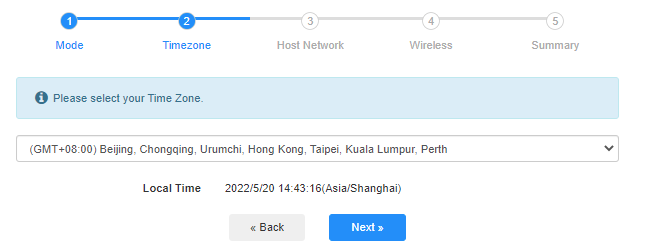


69 則留言
@Dear Artyom,
Thank you for contacting Cudy support team. IOur technical support has contacted you via email. Please check.
“I set up my cudy re 300 WiFi amplifier, but the program doesn’t see it, why is that?”
I set up my cudy re 300 WiFi amplifier, but the program doesn’t see it, why is that?
@ping不通连入无线扩展的TR3000的LAN口的电脑, 你好
你可以尝试用无线中继模式,中继模式完成之后,无线接口会获取一个IP地址(假设为192.168.1.200,当然你也可以设置静态IP自己指定IP地址)作为路由器的WAN口。LAN网段假设还是保持默认的192.168.10.1 255.255.255.0。连接完毕之后,你可以先关闭路由器的防火墙。然后到主的路由器里面增加一条局域网的静态路由条目。目的 192.168.10.0 255.255.255.0,出口LAN, 下一跳: 192.168.1.200 或者你指定的IP地址。
然后你再试试两个局域网互访是不是正常了。注意WAN ping LAN 的时候,被PING的主机的防火墙需要关闭。或者放行外网发送的ICMP 报文,不然被系统防火墙拦截也是ping不通的。
“用TR3000无线扩展连入无线网络后,将电脑A通过网线插入TR3000的LAN口,电脑A能够获取IP,也能访问网络,也能ping通局域网内其他电脑,但是局域网内的其他电脑ping不通电脑A。”
用TR3000无线扩展连入无线网络后,将电脑A通过网线插入TR3000的LAN口,电脑A能够获取IP,也能访问网络,也能ping通局域网内其他电脑,但是局域网内的其他电脑ping不通电脑A。
申屠嘉佑,你好 请问具体是什么错误,您也可以尝试截图发送我的邮箱处理supportcudy.com。
“WiFi中继时从主路由上获取的IP地址错误”