第4 步: 選擇您想要的主機網路延長。點選"連接"。
 第5 步: 輸入主機網路的無線密碼。
 注意: 請確保您輸入的無線密碼正確,否則配置無法成功。
第6 步: 自訂Wi-Fi 名稱( SSID),密碼與您的主機網路相同。
 第7 步: 點擊"儲存並儲存"應用"完成配置。
 第8 步: 將您的無線設備重新連接到新的Wi-Fi 網路。
 注意:
注意:
1.如果您使用有線裝置設定無線擴展器模式,則該裝置在設定後可能無法上網。請拔下並插入乙太網路電纜或停用並啟用網路適配器以取得新連線。
2.在無線擴展器模式下設定 Cudy 路由器後,IP 位址將由主機路由器分配,預設 IP 位址 192.168.10.1 將無法登入。 /" data-mce-href="http://cudy.net/" data-mce-fragment="1">http://cudy.net'


 第3 步: 選擇您的"時區"。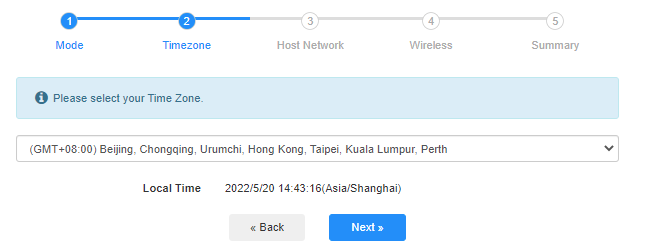


69 則留言
Apparently wr1500 doesn’t have a way to block devices – or any way to filter them out. Why?
@Dear Sifiso,
Yes, the WR1500 support repeater mode and AP mode. And support to be wall mounted.
“Hi, I was wondering if Cudy AX1500 Wi-Fi 6 Router has a repeater mode or only AP mode? Thanks”
…also can it be wall mounted? Thanks
Hi, I was wondering if Cudy AX1500 Wi-Fi 6 Router has a repeater mode or only AP mode? Thanks
@Dear Martin,
LT700 supports WISP function which can connect to the existing WiFi to extend the WiFi coverage. You can have a try.
“I have the LT700 and i bough a cellular and wifi puck for a motohome . im hoping to connect the wifi part to one of the cellular ports to increase wifi range while roaming , is this possible ?”