
I router Cudy hanno un'interfaccia web integrata e questa pagina web interna non richiede l'accesso a Internet. Puoi connettere il tuo dispositivo al Cudy Router tramite Wi-Fi o Ethernet per accedere alla pagina di gestione web.
Passaggio 1: collega il tuo computer al tuo Cudy Router tramite Wireless o Cablato.
Se Wireless: il nome Wi-Fi predefinito e la password è stampata sull'etichetta inferiore del router.
Se cablato: collega il tuo computer a uno dei < strong data-mce-fragment="1">Porte LAN sul retro del router tramite un cavo Ethernet.
Passaggio 2: apri un browser web (Google, Firefox, ecc.) e inserisci http://cudy.net o http://192.168.10.1 nella barra degli indirizzi.
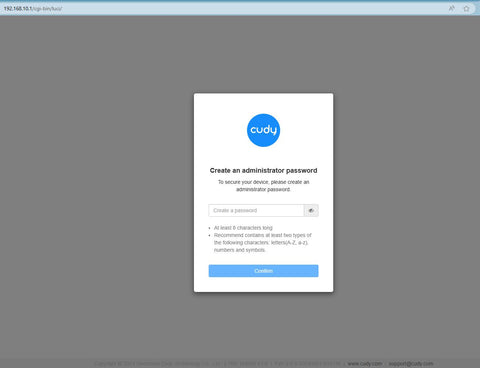
Passaggio 3: verrà visualizzata la pagina di accesso di seguito . Scegli la lingua di visualizzazione della pagina di gestione web e la password richiesta è "admin" oppure devi creare una password.

 < /p>
< /p>
Risoluzione dei problemi:
Se la pagina di accesso non viene visualizzata, prova i seguenti passaggi per la risoluzione dei problemi:
1. Assicurati che http://cudy.net o http://192.168.10.1 sta digitando nella barra degli indirizzi e non nella barra di ricerca.
2. Se il computer è impostato su un indirizzo IP statico, modifica le sue impostazioni per ottenere automaticamente un indirizzo IP e un indirizzo del server DNS.
3. Utilizza un altro browser web e riprova.
4. Cambia diversi dispositivi client.
5. Riavvia o reimposta il router e controlla di nuovo.
Come ripristinare: con l'alimentazione accesa, premere e forare il pulsante/foro Reset per 8 secondi.< /p>
6. Cancella i cookie del browser.
7. Disabilita e abilita l'adattatore di rete in uso.
265 commenti
@Chaleen kriel
Dear Chaleen,
Thank you for contacting Cudy support team.
If you forget the password of your router, you can try to reset the router to factory default by long pressing the reset button for about 3 seconds. You can release the reset button when the LED flashes.
You need to create a new password when first login to the web page of the router.
“Cant connect on the cudy app the password admin does not work WR3000 router”
Margie Muggleston,
Dear Margie,
Thanks for contacting the Cudy support team. I need some information.
You can try to reset the router to factory default by long pressing the reset button for about 3 seconds. You can release the reset button when the LED flashes.
The default password of the WEB panel will recover to default “admin”. If the firmware version is 2.×.x, you need to create a new password when first login to the web page of the router.
“Hi there. I want to log in to Cody, but it won’t accept “admin” as a password. Anything else I can try?”
Cant connect on the cudy app the password admin does not work WR3000 router
Hi there. I want to log in to Cody, but it won’t accept “admin” as a password. Anything else I can try?
@Ivan,
Dear Customer,
Thank you for contacting Cudy support team.
Our technical support has sent you the solutions via email. Please check.
“Good day I suspect someone is using my wifi without my permission how can I block or delete them”