
Questo tutorial ti mostrerà come configurare un tunnel VPN tra la tua macchina Cudy e qualsiasi altro computer. ZeroTier è uno dei servizi VPN più semplici da configurare ed è completamente gratuito per un massimo di 50 dispositivi. L'intero processo, dall'inizio alla fine, dovrebbe richiedere solo pochi minuti.
1. Crea ZeroTier Account
2. Crea una rete
- Dopo aver effettuato l'accesso a ZeroTier, vai alla scheda Reti
- Fai clic su Crea nuova rete e il tuo ID di rete sarà visibile nell'interfaccia

3. Scegli Accesso pubblico o Privato
Esistono due modi per gestire l'accesso: pubblico o privato
Rete pubblica: chiunque abbia l'ID di rete può connettersi. Questa è l'opzione più semplice ma è leggermente meno sicura.
- Fai clic su Rete nell'interfaccia ZeroTier
- In Controllo accesso, seleziona l'opzione Rete pubblica:

Rete privata: tutte le macchine devono essere approvate tramite l'interfaccia ZeroTier prima di potersi connettere. Questa è l'opzione predefinita ed è più sicura.
- Quando le macchine si uniscono alla rete (vedi passaggio 4), dovranno essere approvate nella sezione Membri. Seleziona semplicemente la casella sotto Aut? colonna per approvare ciascuna macchina:
4. Configura il router Cudy
- A. Apri un browser web e accedi a http://cudy.net/ o http://192.168.10.1/
- B. Vai su Impostazioni generali -> VPN per impostare Zerotier, scegli Zerotier master e inserisci l'ID di rete Zerotier. Quindi fai clic su Salva e applica.

- C. Se configuri la tua rete come Rete privata, devi selezionare la casella sotto Autenticazione? colonna per approvare nuovamente Cudy Router.
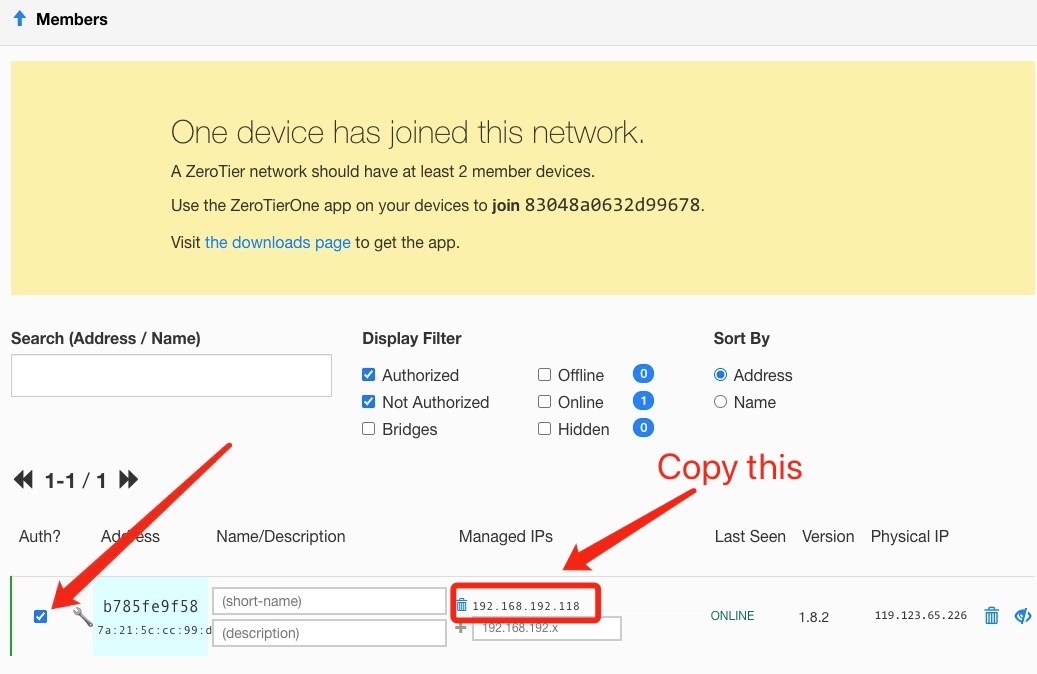
- D. Aggiungi percorsi per il router Cudy.

5. Installa l'app ZeroTier
Scarica e installa la app ZeroTier su tutte le macchine che desideri connettiti.
6. Unisci le macchine alla rete
Quando l'app ZeroTier è in esecuzione, fai clic su Unisciti alla rete
Inserisci l'ID di rete indicato nel passaggio 2 e fai clic su Accedi. Se hai creato una rete pubblica, ora dovresti essere connesso. Se hai creato una rete privata, dovrai approvare ogni macchina nell'interfaccia ZeroTier (vedi passaggio 2).
7. Verifica la connettività
Puoi verificare se la connessione è avvenuta correttamente facendo clic su Mostra rete nell'app ZeroTier. Lo stato dovrebbe mostrare OK e la casella Connesso dovrebbe essere selezionata. Puoi anche provare a eseguire il ping di un indirizzo IP privato di un altro computer per verificare la connessione.
8. Accesso remoto
Quindi puoi accedere in remoto al router Cudy utilizzando 192.168.10.1 (192.168.192.118) o la sottorete 192.168.10.xxx.
129 commenti
@Dear David Esteban,
Our technical support has sent you the new beta firmware via email. Please update and
check.
“Subject: LT500 V3.0 – Static routing over VPN (ZeroTier) interface
Hello Cudy Support,
I have an LT500 with the following details:
- Hardware: LT500 V3.0
- Firmware: 2.4.16-20250804-150319
I use it as a ZeroTier master in a site-to-site setup with two Cudy X6 routers. On the X6 and on the LT500 V2.0 emulator (FW 2.1.1-20240419), the Static Routing page lets me choose the “VPN” interface, so I can route remote subnets through the ZeroTier tunnel.
On my LT500 V3.0, the Static Routing interface list only shows WAN, LAN, WISP, GUEST and 4G. Without the VPN option I cannot route traffic to the remote networks through ZeroTier, which also breaks access when the router fails over to 4G.
Could you please tell me if there is a firmware for LT500 V3.0 (official or beta) that allows selecting the VPN/ZeroTier interface in Static Routing? If so, I would appreciate it if you could send it to me.
Thank you very much.
Best regards,
David"
@Dear Bolesław,
Our technical support has contacted you via email. Please check.
“Hi, could you share the firmware for my router (WR3000 V1.0 router currently running firmware:
2.4.19-20250828-192837), which support ZeroTier?
Best regards!”
@Dear Fajar,
Our technical support has sent you the firmware via email. Please check.
““Hi,
Please can you send me the firmware for WR3000 V1.0 with ZeroTier?
Regards””
Subject: LT500 V3.0 – Static routing over VPN (ZeroTier) interface
Hello Cudy Support,
I have an LT500 with the following details:
- Hardware: LT500 V3.0
- Firmware: 2.4.16-20250804-150319
I use it as a ZeroTier master in a site-to-site setup with two Cudy X6 routers. On the X6 and on the LT500 V2.0 emulator (FW 2.1.1-20240419), the Static Routing page lets me choose the “VPN” interface, so I can route remote subnets through the ZeroTier tunnel.
On my LT500 V3.0, the Static Routing interface list only shows WAN, LAN, WISP, GUEST and 4G. Without the VPN option I cannot route traffic to the remote networks through ZeroTier, which also breaks access when the router fails over to 4G.
Could you please tell me if there is a firmware for LT500 V3.0 (official or beta) that allows selecting the VPN/ZeroTier interface in Static Routing? If so, I would appreciate it if you could send it to me.
Thank you very much.
Best regards,
David
Hi, could you share the firmware for my router (WR3000 V1.0 router currently running firmware:
2.4.19-20250828-192837), which support ZeroTier?
Best regards!