
I router Cudy hanno un'interfaccia web integrata e questa pagina web interna non richiede l'accesso a Internet. Puoi connettere il tuo dispositivo al Cudy Router tramite Wi-Fi o Ethernet per accedere alla pagina di gestione web.
Passaggio 1: collega il tuo computer al tuo Cudy Router tramite Wireless o Cablato.
Se Wireless: il nome Wi-Fi predefinito e la password è stampata sull'etichetta inferiore del router.
Se cablato: collega il tuo computer a uno dei < strong data-mce-fragment="1">Porte LAN sul retro del router tramite un cavo Ethernet.
Passaggio 2: apri un browser web (Google, Firefox, ecc.) e inserisci http://cudy.net o http://192.168.10.1 nella barra degli indirizzi.
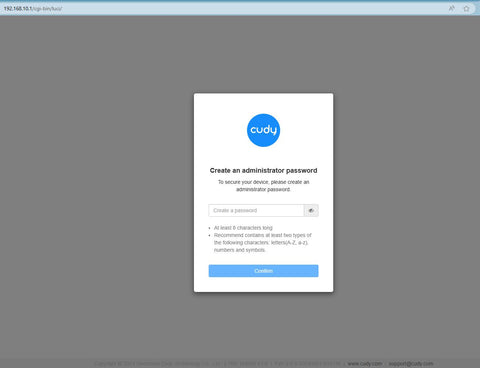
Passaggio 3: verrà visualizzata la pagina di accesso di seguito . Scegli la lingua di visualizzazione della pagina di gestione web e la password richiesta è "admin" oppure devi creare una password.

 < /p>
< /p>
Risoluzione dei problemi:
Se la pagina di accesso non viene visualizzata, prova i seguenti passaggi per la risoluzione dei problemi:
1. Assicurati che http://cudy.net o http://192.168.10.1 sta digitando nella barra degli indirizzi e non nella barra di ricerca.
2. Se il computer è impostato su un indirizzo IP statico, modifica le sue impostazioni per ottenere automaticamente un indirizzo IP e un indirizzo del server DNS.
3. Utilizza un altro browser web e riprova.
4. Cambia diversi dispositivi client.
5. Riavvia o reimposta il router e controlla di nuovo.
Come ripristinare: con l'alimentazione accesa, premere e forare il pulsante/foro Reset per 8 secondi.< /p>
6. Cancella i cookie del browser.
7. Disabilita e abilita l'adattatore di rete in uso.
288 commenti
I have a Cudy wireless router however I cannot signin to the Cudy page to setup the network. I have a eero router connected to an 8 port tp link and one port from the tplink connected to the Cudy Router. I cannot sign into the Cudy nextwork page when I specify the correct Ip address. Thank you
@George
Dear George,
Thank you for contacting Cudy support team.
Our technical support has contacted you via email. Please check.
“After upgrading to latest firmware my WR1200 v.2 I can use the webui only from wifi network the password doesnt work anymore from the wan.Can you help me ?”
After upgrading to latest firmware my WR1200 v.2 I can use the webui only from wifi network the password doesnt work anymore from the wan.Can you help me ?
@David
Dear customer,
Thank you for contacting Cudy support team. I need some more information to fix this issue.
1. What is the model of your router? You can check the model on the label at the bottom of the router.
2. What are the passwords for? WiFi password? Administrator password? or other?
Did you try to reset the router to factory default by long pressing the reset button for about 3 seconds? You can release the reset button when the LED flashes. The default password of the WEB panel will recover to default “admin”. If the firmware version is 2.×.x, you need to create a new password when first login to the web page of the router. The WiFi password will recover to factory default which is printed on the label.
“I’m failing to reset my passwords may u please help me with this”
I’m failing to reset my passwords may u please help me with this