第4 步: 選擇您想要的主機網路延長。點選"連接"。
 第5 步: 輸入主機網路的無線密碼。
 注意: 請確保您輸入的無線密碼正確,否則配置無法成功。
第6 步: 自訂Wi-Fi 名稱( SSID),密碼與您的主機網路相同。
 第7 步: 點擊"儲存並儲存"應用"完成配置。
 第8 步: 將您的無線設備重新連接到新的Wi-Fi 網路。
 注意:
注意:
1.如果您使用有線裝置設定無線擴展器模式,則該裝置在設定後可能無法上網。請拔下並插入乙太網路電纜或停用並啟用網路適配器以取得新連線。
2.在無線擴展器模式下設定 Cudy 路由器後,IP 位址將由主機路由器分配,預設 IP 位址 192.168.10.1 將無法登入。 /" data-mce-href="http://cudy.net/" data-mce-fragment="1">http://cudy.net'


 第3 步: 選擇您的"時區"。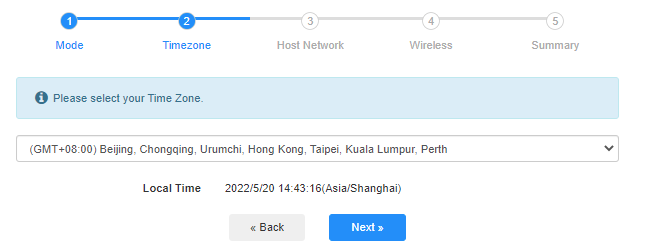


69 則留言
No sé cómo ponerle contraseña a mi cudi extender
@Dear Syed,
Sorry, when working on Client mode, it will detect if there is a DHCP server and get an IP address from the DHCP server. So I suggest you set the router to working on WISP mode. The router will enable the DHCP server. Please have a try. You can also disable the router’s 2.4GHz and 5GHz WiFi when working on WISP mode.
“Is it possible to have Cudy run its own dhcp server in cklient mode… I e have the cudy on a different subet… Xonnecting to wifi..then giving out IP on its own subnet to devies that connect to the cudy by wire or wirelessdly…
Router 1…wifi: ABCwifi..ip range 192.168.0.x
Connect wirelessly to …
Router 2 (Cudy) ..wifi:CudyWifi.IP Range: 192.168.25.xx…
?"
Is it possible to have Cudy run its own dhcp server in cklient mode… I e have the cudy on a different subet… Xonnecting to wifi..then giving out IP on its own subnet to devies that connect to the cudy by wire or wirelessdly…
Router 1…wifi: ABCwifi..ip range 192.168.0.x
Connect wirelessly to …
Router 2 (Cudy) ..wifi:CudyWifi.IP Range: 192.168.25.xx…
?
@Dear Chosen,
Please login to the web page of your Cudy router. Go to “General Settings” —“Wireless” function page. You will see the Wi-Fi name. You can change it here.
“I don’t know how to change my Wi-Fi nickname because I rebooted the Wi-Fi box by, mistake”
I don’t know how to change my Wi-Fi nickname because I rebooted the Wi-Fi box by, mistake