
Common network topology:

Step 1: Open a web browser and go to http://cudy.net or http://192.168.10.1.
For details, please refer to How to log into the web interface of Cudy Router?
Step 2: The Quick Setup window will pop up, choose 'Wireless Extender', then go 'Next'.

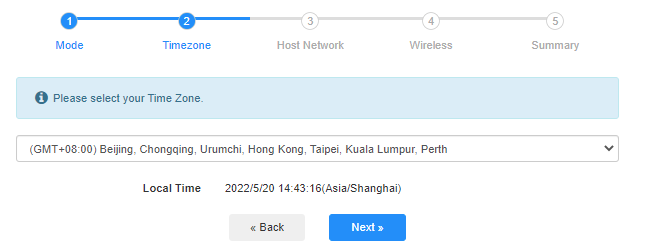
 Step 3: Choose your 'Time Zone'.
Step 4: Select the host network you want to extend. Click on 'Connect'.

 Step 5: Enter the host network's wireless password.

 Note: Make sure the wireless password you type in is correct, otherwise, the configuration cannot success.
Step 6: Customize the Wi-Fi name (SSID) and the password is the same as your host network.

 Step 7: Click 'Save & Apply' to complete the configuration.

 Step 8: Reconnect your wireless devices to the new Wi-Fi network.

 Note:
Note:
1. If you set up the Wireless Extender mode using a wired device, this device may not have Internet after setup. Please unplug and plug the Ethernet cable or disable and enable the network adapter to acquire the new connection.
2. After setting up the Cudy router in Wireless Extender mode, the IP address will be assigned by the host router and the default IP Address 192.168.10.1 will not be able to log in. If you need to log into Cudy router again, type 'http://cudy.net' into your browser or look up the Cudy router's IP address in your host router's client list.
69 comentarios
@Pierluigi, salve,
Potresti indicarmi il modello del tuo dispositivo Cudy?
“con il mio dispositivo questa configurazione non funziona; host router vede il pc collegato a cudy ma il pc non ha accesso a internet. Nel mio caso unica configurazione che funziona e modo Wisp, ma i PC connessi via lan a cudy sono in una sottorete e non vengono visti da host router”
con il mio dispositivo questa configurazione non funziona; host router vede il pc collegato a cudy ma il pc non ha accesso a internet. Nel mio caso unica configurazione che funziona e modo Wisp, ma i PC connessi via lan a cudy sono in una sottorete e non vengono visti da host router
@Уважаемый Василий,
Пожалуйста, попробуйте проверить, есть ли настройки брандмауэра в основной сети Wi-Fi. Например, фильтр MAC-адресов беспроводных устройств. Если да, отключите его и проверьте ещё раз.
Кроме того, попробуйте войти на веб-страницу RE1200 Outdoor и включить функцию «MAC-ретранслятор».
RE1200 Outdoor не поддерживает функцию WISP.
“У меня аналогичная проблема с предыдущим комментарием.
Приобрел роутер cudy AP1200 v1.0 (RE1200 Outdoor V1.0), прошивка 2.4.30-20260603-132148, подключаю его по инструкции в режиме усилитель сигнала , ввожу пароль от основной сети, далее роутер создает две сети с приставкой EXT, пароль как у основной сети оставляю, подключаюсь к новой сети интернета нет. Захожу настройки Cudy вижу: Интернет: НЕТ подключения, Режим работы: Усилитель Wi-Fi. При этом на основном роутере (Keenetic Start) интернет естественно есть. В интернете советуют настроить режим WISP, но в настройках моего роутера Cudy есть только Wireless Access Point, Extender или Client. Что делать?”
У меня аналогичная проблема с предыдущим комментарием.
Приобрел роутер cudy AP1200 v1.0 (RE1200 Outdoor V1.0), прошивка 2.4.30-20260603-132148, подключаю его по инструкции в режиме усилитель сигнала , ввожу пароль от основной сети, далее роутер создает две сети с приставкой EXT, пароль как у основной сети оставляю, подключаюсь к новой сети интернета нет. Захожу настройки Cudy вижу: Интернет: НЕТ подключения, Режим работы: Усилитель Wi-Fi. При этом на основном роутере (Keenetic Start) интернет естественно есть. В интернете советуют настроить режим WISP, но в настройках моего роутера Cudy есть только Wireless Access Point, Extender или Client. Что делать?
@Уважаемый Андрей,
Наша служба технической поддержки отправила вам прошивку по электронной почте. Пожалуйста, проверьте.
“приобрел роутер cudy BE 3600 WR 3600E v1.0, прошивка 2.3.15, подключаю его по инструкции в режиме усилитель сигнала , ввожу все как полагается пароль от основной сети , далее роутер создает две сети с приставкой EXT, пароль как у основной сети оставляю, прохожу все пути мне пишет подключитесь к новой сети , я подключаюсь интернета нет. Захожу в приложение связи Cudy с основным роутером нет, делаю повторно процедуру все так же новая сеть появляется интрнета нет. Что делать ??? До этого был роутер тоже Cudy wr3000 там был режим WISP с этим режимом мне удавалось расширить сеть. В WR3600E такого режима нет, токлько усилитель сигнала.”