本教學將向您展示如何在 Cudy 電腦和任何其他電腦之間設定 VPN 隧道。 ZeroTier 是最容易設定的 VPN 服務之一,而且完全免費,最多可支援 50 台裝置。整個過程從開始到結束只需要幾分鐘。
1。 建立 ZeroTier帳號 2. 創建網路 3. 選擇公共或私人訪問 有兩種管理存取權限的方法:公開或私人 公共網路:任何擁有網路 ID 的人都可以連線。這是最簡單的選項,但安全性稍差。
專用網路:所有電腦都必須透過 ZeroTier 介面獲得批准才能連接。 這是預設選項,更安全。
4。 設定 Cudy 路由器 5。 安裝 ZeroTier 應用程式 在您想要的所有電腦上下載並安裝ZeroTier 應用連接。
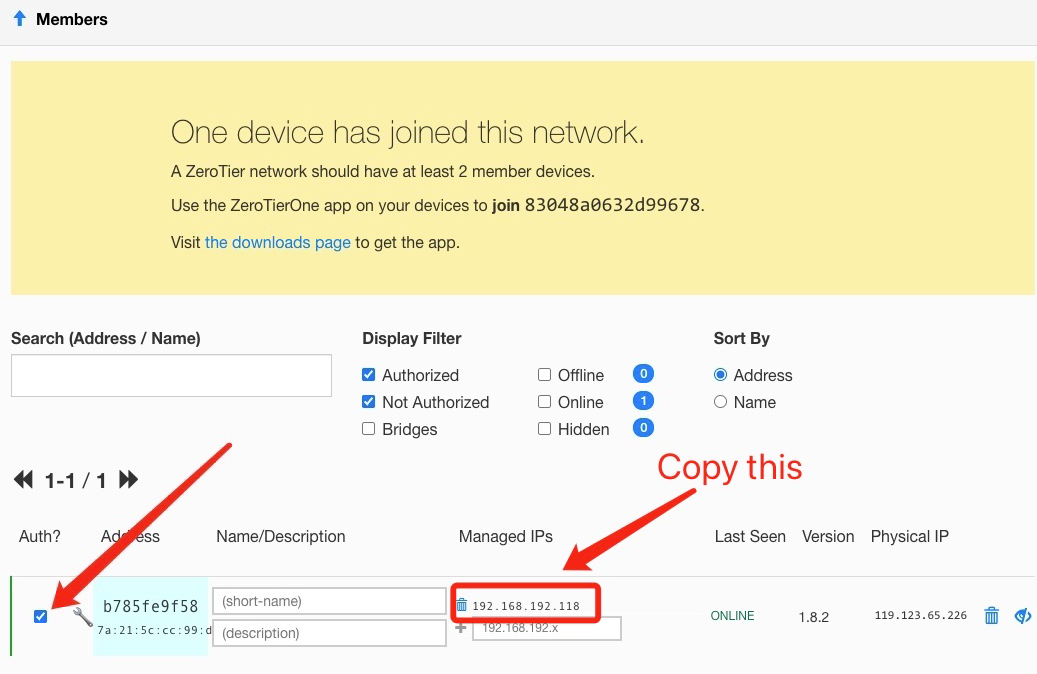
6。 將機器加入網路 當 ZeroTier 應用程式運作時,按一下"加入網路" 輸入步驟 2 中的網路 ID,然後點選"加入"。 如果您建立了公共網絡,那麼您現在應該已連線。 如果您建立了專用網絡,則需要在 ZeroTier 介面中批准每台電腦(請參閱步驟 2)。
7. 驗證連線 您可以點擊 ZeroTier 應用程式上的"顯示網路"來檢查是否已成功連線。 "狀態"應顯示"確定",並且"已連接"方塊應選取。 您也可以嘗試 ping 另一台電腦的私人 IP 位址來驗證連線。
8。 遠端存取 然後您可以使用192.168.10.1(192.168.192.118)或子網路192.168.10.xxx遠端存取cudy路由器。




118 則留言
“Hi,
Please can you send me the firmware for WR3000 V1.0 with ZeroTier?
Regards”
@Estimado Kevin Cordon,
Lo sentimos, el WR300 no es compatible con la función Zero Tier. No podemos añadir esta función al WR300.
“Buen día
Me pueden brindar el firmware para el wr300 que soporte zerotier”
Buen día
Me pueden brindar el firmware para el wr300 que soporte zerotier
@Dear Jose,
Our technical support has sent you the firmware via email. Please check.
“Hi,
Please can you send me the firmware for LT400 V1.0 EU with ZeroTier?
Regards”
Hi,
Please can you send me the firmware for LT400 V1.0 EU with ZeroTier?
Regards