
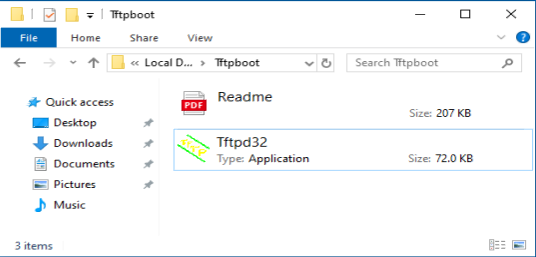
1. Pobierz i rozpakuj plik stąd .
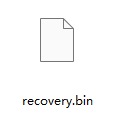
2. Pobierz najnowsze oprogramowanie sprzętowe z oficjalnej strony internetowej i zmień jego nazwę na „recovery.bin”.
3. Wyłącz router. Odłącz zasilacz lub naciśnij przycisk ZASILANIE.
4. Podłącz komputer do portu LAN routera za pomocą kabla Ethernet.
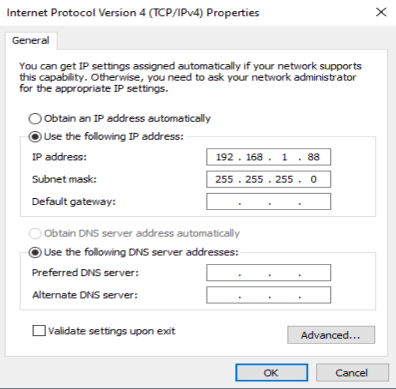
5. Skonfiguruj ręcznie adres IP swojego komputera na „192.168.1.88”.
6. Uruchom „ tftp32.exe ”.
7. Uruchom w wierszu poleceń polecenie netsh advfirewall set allprofiles state off , aby wyłączyć zaporę systemu Windows. W przeciwnym razie tftp zostanie zablokowany.
8. Naciśnij przycisk/otwór „ Reset ” i przytrzymaj go. Przed włączeniem routera i rozpoczęciem pobierania oprogramowania sprzętowego przez tftp nie zwalniaj przycisku/otwóru „ Reset ”.
9. Włącz router.
10. Kiedy wszystkie kontrolki migają szybko lub gdy tftp rozpocznie pobieranie oprogramowania sprzętowego, możesz zwolnić przycisk/otwór „ Reset ”.

11. Gdy lampka miga powoli, aktualizacja została zakończona.
12. Przywróć adres IP swojego komputera do dynamicznego IP.
13. Gotowe.
142 komentarze(-y)
@Ahmad,
Dear Customer,
Thank you for contacting Cudy support team.
Our technical support has contacted you via email. Please check.
“Hi, why I couldn’t download any files? got 404”
Hi, why I couldn’t download any files? got 404
@Alexander
Dear Customer,
Yes, you are right.
“OK, answer this myself (for TR3000 v1.0):
1. Find and download tftp32.exe
2. make directory “tftpboot”
3. put tftp32.exe AND the firmware (renamed to “recovery.bin”) into that directory
4. connect your PC to the LAN-port of the device
5. set your LAN IP to 192.168.1.88 like described here.
6. disable windows firewall (can do this with click and point in windows)
7. start tftp from the directory in step 2. and leave that window open
8. press reset-button on the device and then connect it to power/power on, keep pressed and wait, until it starts blinking/downloading the firmware to the device (in my case this was done after 3 seconds)
9. Enable firewall again, enable dynamic config (DHCP) on your lan port again, re-connect your lan and start to configure your Cudy device”
OK, answer this myself (for TR3000 v1.0):
1. Find and download tftp32.exe
2. make directory “tftpboot”
3. put tftp32.exe AND the firmware (renamed to “recovery.bin”) into that directory
4. connect your PC to the LAN-port of the device
5. set your LAN IP to 192.168.1.88 like described here.
6. disable windows firewall (can do this with click and point in windows)
7. start tftp from the directory in step 2. and leave that window open
8. press reset-button on the device and then connect it to power/power on, keep pressed and wait, until it starts blinking/downloading the firmware to the device (in my case this was done after 3 seconds)
9. Enable firewall again, enable dynamic config (DHCP) on your lan port again, re-connect your lan and start to configure your Cudy device
Sadly this does not work with my TR3000:
1. The download link (for tftp32?) is broken/does not work.
2. It doesn’t say where to put the sysupgrade firmware after download.
3. Does the sysupgrade firmware have to be renamed (to “recovery.bin”)?
Actually the stock vendor firmware for me is better/easier than open-wrt. So it should be possible to reflash to stock fw.