
Cudy routers have a build-in web interface and this internal web page doesn't require the internet access. You can connect your device to the Cudy Router via Wi-Fi or Ethernet to log into the web management page.
Step 1: Connect your computer to your Cudy Router via Wireless or Wired.
If Wireless: The default Wi-Fi name and password are printed on your router's bottom label.
If Wired: Connect your computer to one of LAN Ports on the back of the router via an Ethernet cable.
Step 2: Open a web browser (Google, Firefox, Edge, etc.) and enter http://cudy.net or http://192.168.10.1 in the address bar.
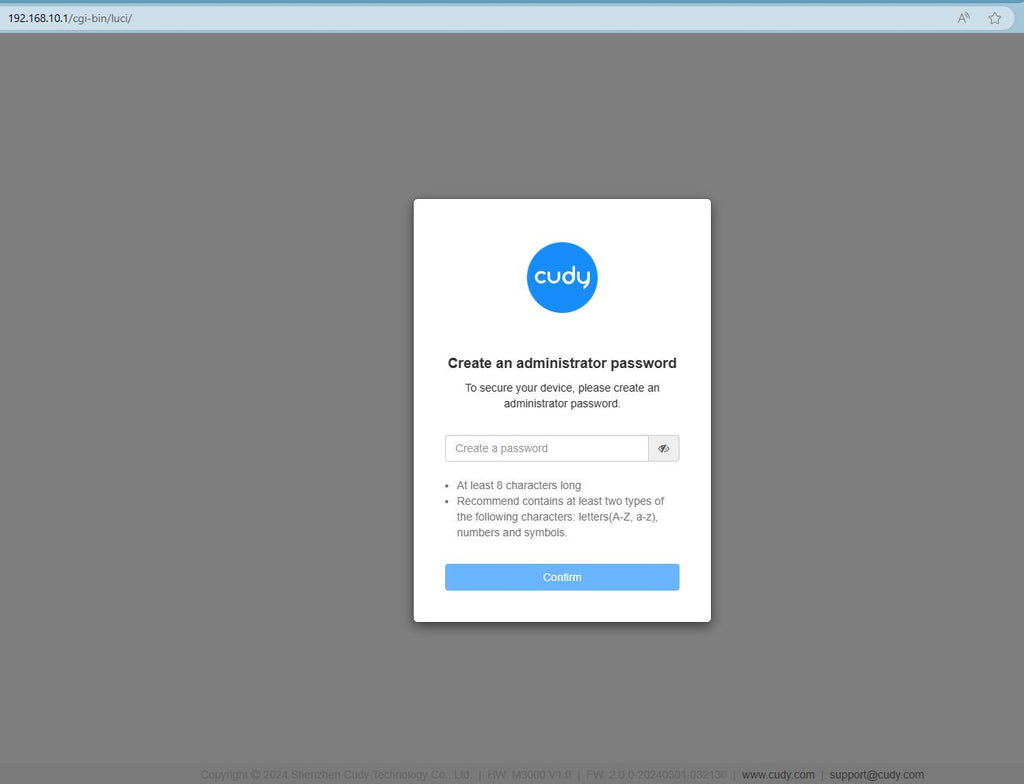
Step 3: The login page below will pop up. Choose the display language of the web management page and the requested password is 'admin' or need to create one password.

Troubleshooting:
If the login page doesn't show up, try the following troubleshooting steps on the website:
What should I do if I can't access the web interface of my Cudy router?
265 comentarios
Very good network
@Dear Cody,
1. What is the model of your router? You can check the model and firmware version on the web management page of the router.
2. Please remove all the cable on the router. Only connect your computer or phone to your router. Then try again.
“Can’t login”
@Estimada Mariela Galea,
La contraseña es la de administrador para acceder a la página de administración web del router. Si la olvida, puede intentar restablecer el router a la configuración de fábrica manteniendo presionado el botón de reinicio durante unos 3 segundos. Puede soltar el botón cuando el LED parpadee. Deberá crear una nueva contraseña la primera vez que acceda a la página web del router.
“Como hago para recuperar mi clave del router por Google”
Como hago para recuperar mi clave del router por Google
@Dear Ngulube Micheal
I don’t understand you well. Please tell us more details.
“Am unable to configure my cudy due to private halkers”