
This article will guide you to configure Cudy Router step by step.
Common network topology:

Preparations:
1. Unplug your modem and move the backup battery if it has one.
2. Connect router's Internet port (Blue) to the powered-off modem via an Ethernet cable.
3. Power on the modem, and then wait about 2 minutes for it to restart.
4. Connect the power adapter to the router and wait the System LED turn to solid on (red or blue).
5. Connect your computer to the router via Wi-Fi or Ethernet.
6. Check the LEDs to confirm the hardware connection are correct.
Note: Please make sure you can access internet when you connect the computer directly to the modem. If it failed to get the internet, please contact your Internet Service Provider.
Step 1: Open a web browser and go to http://cudy.net or http://192.168.10.1.
For details, please refer to How to log into the web interface of Cudy Router?
Step 2: The Quick Setup window will pop up, choose 'Wireless Router', then go 'Next'.
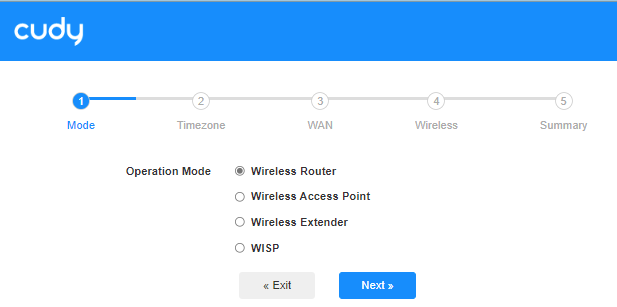
Step 3: Choose your 'Time Zone'.

Step 4: Here, we select 'DHCP' as the WAN Internet connection type. The system will auto detect the Internet connect type, you may have a try, but if it failed or not DHCP, please confirm the configuration details with your Internet Service Provider.

Or go to 'General Settings"->'WAN Mode', choose 'DHCP' as Internet connection type, then apply the settings.

 Step 5: Change the wireless network name and password or just keep them default.

 Step 6: Click 'Save & Apply' to complete the configuration.

 Step 7: Wait a few seconds, if it shows 'Connected' in 'System Status' page, then the internet is successfully setup.

91 comments
@Estimado Roy:
Necesito más información para solucionar este problema.
1. ¿Cuál es el modelo de tu router? Puedes consultar el modelo en la etiqueta situada en la parte inferior del router.
2. ¿Qué ha configurado en el router?
3. ¿Cuál es el estado de Internet de su router? Haga una captura de pantalla y envíemela.
4. Inicie sesión en la página web del router, descargue el archivo bin de diagnóstico en «Herramientas de diagnóstico»→«Diagnóstico»→«GO»→«Descargar» y envíeme el archivo.
“ocupo ayuda no puedo conectar mi cudy AX300 lo hago desde mi teefono viendo un tutorial y nada.”
@Drogi Michału,
Potrzebuję więcej informacji, aby rozwiązać ten problem.
1. Czy wiesz, co należy skonfigurować w routerze ISP, aby połączyć się z Internetem? Czy jest to ONU, czy tylko router bezprzewodowy? Proszę zrobić zrzut ekranu strony statusu WAN i ustawień routera ISP.
2. Proszę ponownie zainstalować router Cudy w trybie routera bezprzewodowego i wymienić router. Proszę również zrobić zrzut ekranu strony statusu i ustawień WAN routera Cudy. Sprawdzę to.
3. Ponadto sprawdź adres MAC WAN routera ISP. Wprowadź go do routera Cudy, jak pokazano na poniższym obrazku. Sprawdź, czy problem został rozwiązany.
Jeśli problem nadal występuje, pobierz plik binarny diagnostyczny w sekcji „Narzędzia diagnostyczne”→„Diagnostyka”→„GO”→„Pobierz” na stronie internetowej routera Cudy i prześlij mi ten plik.
“Jak ręcznie skonfigurować router Cudy WR3600H do współpracy z Play Internet światłowodowy, zamiast routera otrzymanego od operatora? Kupiłem ten router chcąc zastąpić nim router od Play, ale niestety w ogólne nie mogę uzyskać na nim dostępu do internetu, działa tylko jako punkt dostępu.”
ocupo ayuda no puedo conectar mi cudy AX300 lo hago desde mi teefono viendo un tutorial y nada.
Jak ręcznie skonfigurować router Cudy WR3600H do współpracy z Play Internet światłowodowy, zamiast routera otrzymanego od operatora? Kupiłem ten router chcąc zastąpić nim router od Play, ale niestety w ogólne nie mogę uzyskać na nim dostępu do internetu, działa tylko jako punkt dostępu.
@Drogi Rafale,
Nasze wsparcie techniczne przesłało rozwiązania e-mailem. Prosimy o sprawdzenie.
“Dzień dobry,
mam problem, zakupiłem nowy router cudy model wr3000s, chcę się do niego podłączyć i skonfigurować,niestety nie mogę, postępuję wg instrukcji, wchodzę przez podane dwie strony, odpalają się i mam wpisać hasło, żadne nie działa – admin i hasło numeryczne z routera, jak to ogarnąć? czy ktoś mógłby pomóc?”