
This article will guide you to configure Cudy Router step by step.
Common network topology:

Preparations:
1. Unplug your modem and move the backup battery if it has one.
2. Connect router's Internet port (Blue) to the powered-off modem via an Ethernet cable.
3. Power on the modem, and then wait about 2 minutes for it to restart.
4. Connect the power adapter to the router and wait the System LED turn to solid on (red or blue).
5. Connect your computer to the router via Wi-Fi or Ethernet.
6. Check the LEDs to confirm the hardware connection are correct.
Note: Please make sure you can access internet when you connect the computer directly to the modem. If it failed to get the internet, please contact your Internet Service Provider.
Step 1: Open a web browser and go to http://cudy.net or http://192.168.10.1.
For details, please refer to How to log into the web interface of Cudy Router?
Step 2: The Quick Setup window will pop up, choose 'Wireless Router', then go 'Next'.
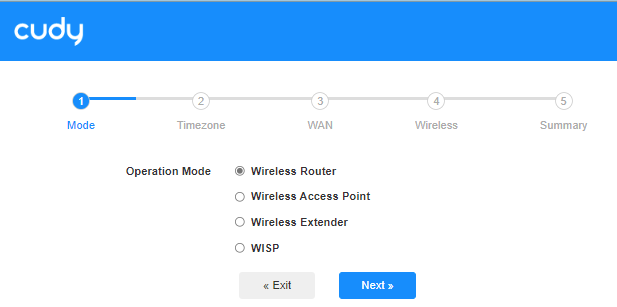
Step 3: Choose your 'Time Zone'.

Step 4: Here, we select 'DHCP' as the WAN Internet connection type. The system will auto detect the Internet connect type, you may have a try, but if it failed or not DHCP, please confirm the configuration details with your Internet Service Provider.

Or go to 'General Settings"->'WAN Mode', choose 'DHCP' as Internet connection type, then apply the settings.

 Step 5: Change the wireless network name and password or just keep them default.

 Step 6: Click 'Save & Apply' to complete the configuration.

 Step 7: Wait a few seconds, if it shows 'Connected' in 'System Status' page, then the internet is successfully setup.

91 comments
@Drogi Arku,
Nasze wsparcie techniczne skontaktowało się z Tobą mailowo. Proszę sprawdzić.
“Mam następujący problem; posiadam internet światłowód (nju/orange), połączenie przez ONU z ruterem Cudy WR3600. Niestety nie mogę uzyskać połączenia z internetem. Tak przez protokół DHCP ani PPPoE ( mam nazwę użytkownika i hasło od dostawcy).”
Mam następujący problem; posiadam internet światłowód (nju/orange), połączenie przez ONU z ruterem Cudy WR3600. Niestety nie mogę uzyskać połączenia z internetem. Tak przez protokół DHCP ani PPPoE ( mam nazwę użytkownika i hasło od dostawcy).
@Drogi Piotrze,
Możesz spróbować zmienić tryb pracy Wi-Fi 2,4 GHz na tryb Wi-Fi 6, 802.11b+g+n+ax. Następnie sprawdź ponownie.
“Posiadam ruter WR3600. Nie mogę sparować włącznika Sonoff th16. Próbowałem sieci 2.4 G, szyfrowanie WPA2-PSK/WPA3-SAE i niższe. Podpowiecie coś?”
Posiadam ruter WR3600. Nie mogę sparować włącznika Sonoff th16. Próbowałem sieci 2.4 G, szyfrowanie WPA2-PSK/WPA3-SAE i niższe. Podpowiecie coś?
@Dear Zsolt,
The ethernet port of RE1200 is a 100Mbps port. So it is normal that the speed not exceed 100Mbps. It is hardware spec. Can not be changed.
“Hello. I have a problem that I bought a cudy ac1200 (re1200) signal amplifier, but it can’t transmit more than 100mb/s speed via ethernet cable. (It gets 1000mb/s signal via ethernet cable) could you help me what could be the problem??”