Prolong the PoE by installing up to 3 extenders in a daisy chain. Each PoE extender consumes up to 2W of power from the PoE line.
Need More Reach? Add Another One
Prolong the PoE by installing up to 3 extenders in a daisy chain. Each PoE extender consumes up to 2W of power from the PoE line.
Designed for Harsh Outdoor Environment
Level 3+ EMC Protection
Keep your connection online with robust protection. Additionally featuring Polarity / Overvoltage / Short-Circuit / Automatic Voltage Regulation protection.
Works in Extreme Temperatures
Works in 70 °C (158° F) and cold (-20°C / -4° F), making it suitable for outdoor installations such as parking lots, cruise decks, national parks, and more.
High-Speed. Plug and Play.
Gigabit Speed
Provides super-fast bandwidth suitable for connecting multiple cameras, high-speed access points, speakers down the line. *Connecting mulitple clients requries additional network switch at its end.
Wall-Mount Ready
Installation is straightforward with no configuration required. Mounting screws are included in the box.
FAQ
What is a PoE Extender?
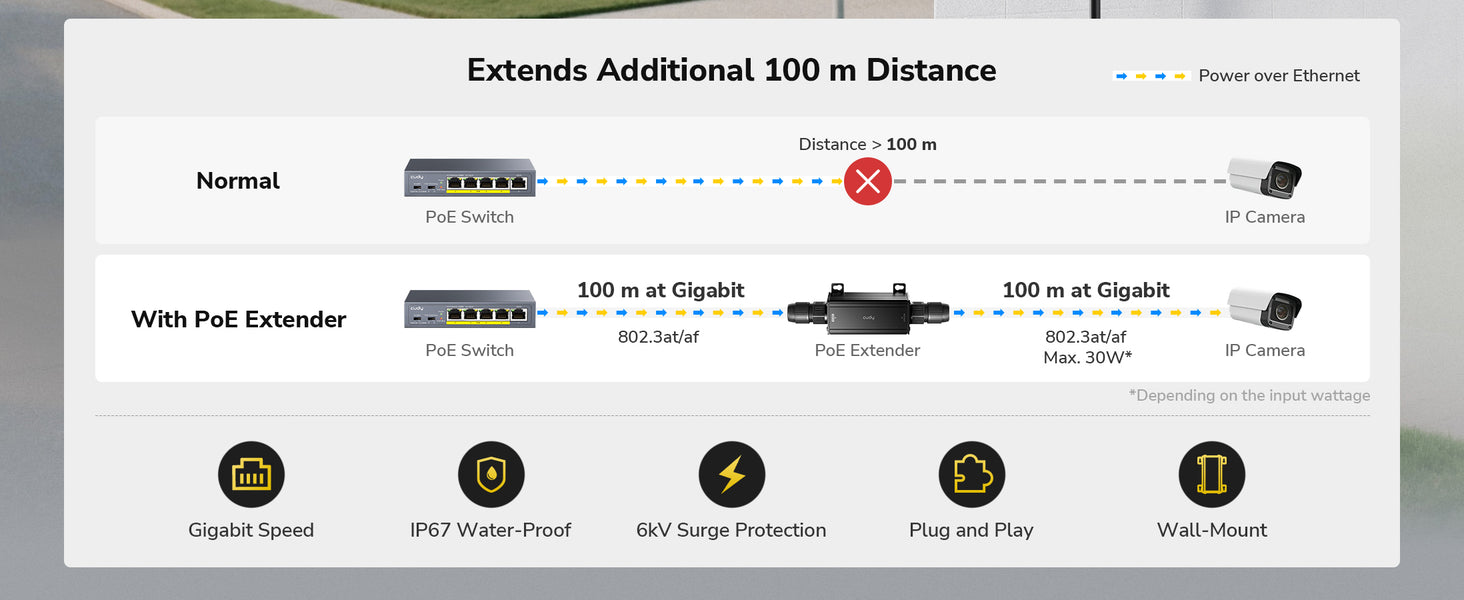
A PoE Extender allows you to extend both power and data over Ethernet beyond the standard 100 m (328 ft) limit. It receives PoE input from a PoE switch or injector and outputs power and data to the next device or another extender.
Can I connect a PoE Extender directly to a non-PoE switch?
No. A non-PoE switch does not provide power through Ethernet.
You must use a PoE injector between the switch and the extender to supply power if you do not have a PoE switch.
My PoE Extender is not working. What should I check first?
Please verify the following:
The upstream device (switch or injector) supports PoE or PoE+ (802.3af/at).
Non-PoE switches cannot power the extender.
The Ethernet cable is Cat5e or higher, in good condition, and under 100 m per segment.
The total chain length (from the switch to the final device) does not exceed the maximum supported distance.
The powered device (PD), such as a camera or AP, does not exceed the extender’s PoE output capacity.
Edit: Right click the content you want to edit and click "Inspect" to edit it.
Print/Save: Right click in the browser and click "Print", save it as PDF or print it directly. Check print settings below if it's your first-time printing.
Print Settings:
Check the option "Background graphics" to enable gray background.
Uncheck the option "Headers and footers" to remove page information.
Cut:
Refer to the gray border line to cut out the finished InfoCard.
It's recommended to use third-party tools to merge the files before printing to save paper when printing multiple InfoCards.
The actual available power equals the uplink power minus the loss on the line and device’s own power consumption (see the power consumption in the spec sheet). A PoE switch or PoE adapter that supports standard IEEE PoE standard at 54 V is recommended as the uplink power source.
100m extension is measured from the GbE out to the client devices. The section between uplink switch and GbE In is determined by the uplink switch.