
1. ดาวน์โหลดเฟิร์มแวร์ล่าสุดจากศูนย์ดาวน์โหลด
2. แตกไฟล์ที่คุณดาวน์โหลด
3. เปิดอุปกรณ์ Cudy รอให้ไฟ LED ติดค้าง
4. เชื่อมต่อกับเครือข่ายของ Cudy ผ่าน WiFi หรืออีเธอร์เน็ต
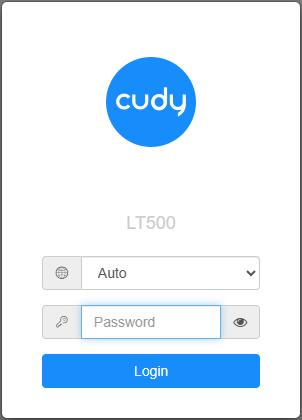
5. เปิดเว็บเบราว์เซอร์แล้วไปที่ http://cudy.net หรือ http://192.168.10.1
สำหรับรายละเอียด โปรดดูที่วิธีลงชื่อเข้าใช้เว็บอินเทอร์เฟซของ Cudy Router
6. อัปเกรดเฟิร์มแวร์
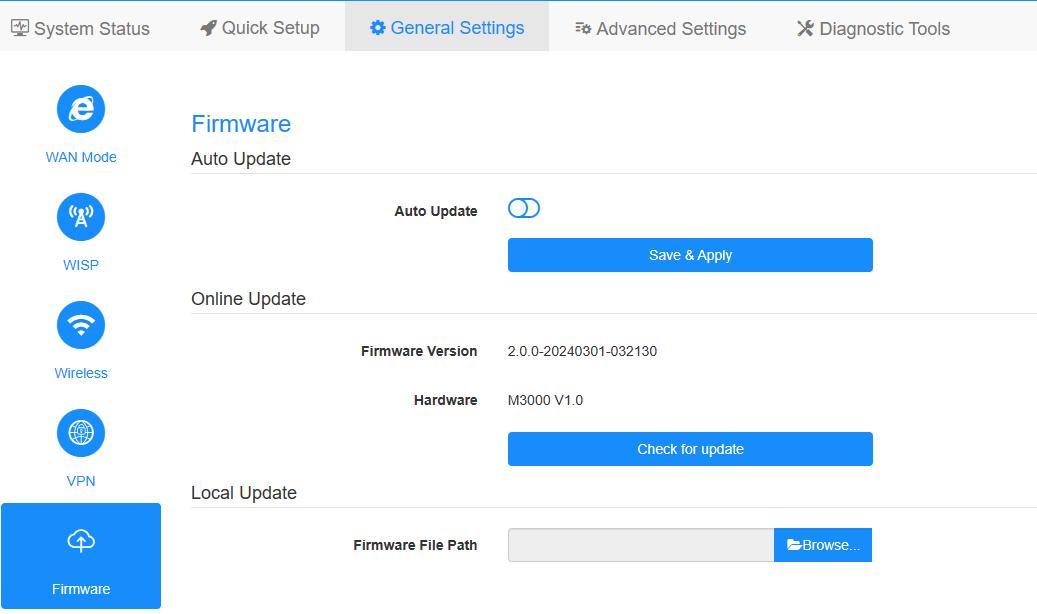
ก. การตั้งค่าขั้นสูง -> เฟิร์มแวร์ เลือกเฟิร์มแวร์ที่คุณคลายซิปเพื่ออัปโหลด
ข. หน้า การตั้งค่าทั่วไป->เฟิร์มแวร์ สามารถอัปเกรดออนไลน์และอัปเดตในเครื่องได้
หมายเหตุ: รองรับเฉพาะเฟิร์มแวร์ 2.x.x หรือสูงกว่าเท่านั้น
7. รอ 5 นาทีเพื่อให้เราเตอร์รีสตาร์ท
181 ความคิดเห็น
Can I downgrade the firmware to a previous version? Actually I have a Cudy P5 5GNR router and I have many problems in WiFi and Ethernet since last version.
@Estimado JB.Grenouille:
No, el firmware Cudy no se puede utilizar en dispositivos de otras marcas.
“Hola !!!
queria saber si se puede usar firmware Cudy en otros dispositivos
por ej tplink TL-Mr6400 v5
lo tengo con openwrt pero m da error el wireguard VPN”
Hola !!!
queria saber si se puede usar firmware Cudy en otros dispositivos
por ej tplink TL-Mr6400 v5
lo tengo con openwrt pero m da error el wireguard VPN
@Estimado JOSE:
1. ¿Cuál es el modelo de su router? Puede consultar el modelo en la etiqueta situada en la parte inferior del router.
2. ¿Cómo conecta el router? ¿Conecta el puerto WAN del router Cudy al dispositivo anterior (como el ONT o el módem)?
3. ¿Qué ha configurado en el router?
4. ¿Cuál es el estado de Internet de su router?
“No puedo compartir WiFi”
No puedo compartir WiFi