
เราเตอร์ Cudy มีเว็บอินเทอร์เฟซในตัว และหน้าเว็บภายในนี้ไม่จำเป็นต้องเชื่อมต่ออินเทอร์เน็ต คุณสามารถเชื่อมต่ออุปกรณ์ของคุณกับเราเตอร์ Cudy ผ่าน Wi-Fi หรืออีเทอร์เน็ตเพื่อเข้าสู่ระบบหน้าการจัดการเว็บ
ขั้นตอนที่ 1: เชื่อมต่อคอมพิวเตอร์กับเราเตอร์ Cudy ผ่าน ไร้สาย หรือ แบบมีสาย
หาก ไร้สาย: ชื่อ Wi-Fi และรหัสผ่านเริ่มต้นจะพิมพ์อยู่ที่ป้ายกำกับด้านล่างของเราเตอร์
หาก แบบมีสาย: เชื่อมต่อคอมพิวเตอร์ของคุณกับ พอร์ต LAN ที่ด้านหลังของเราเตอร์ผ่านสายอีเทอร์เน็ต
ขั้นตอนที่ 2: เปิดเว็บเบราว์เซอร์ (Google, Firefox ฯลฯ) แล้วป้อน http://cudy.net หรือ http://192.168.10.1 ในแถบที่อยู่
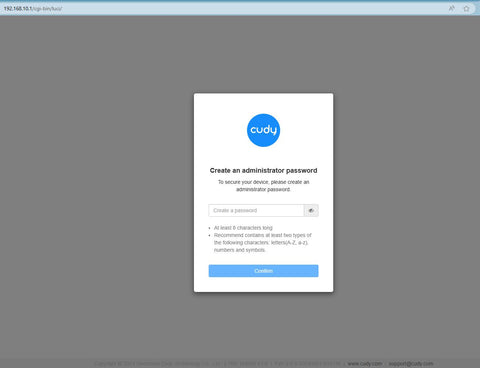
ขั้นตอนที่ 3: หน้าเข้าสู่ระบบด้านล่างจะปรากฏขึ้น เลือกภาษาที่แสดงของหน้าการจัดการเว็บและรหัสผ่านที่ร้องขอคือ 'admin' หรือจำเป็นต้องสร้างรหัสผ่านเดียว

การแก้ไขปัญหา:
หากหน้าเข้าสู่ระบบไม่ปรากฏขึ้น ให้ลองทำตามขั้นตอนการแก้ปัญหาต่อไปนี้:
1. ตรวจสอบให้แน่ใจว่า http://cudy.net หรือ http://192.168.10.1 กำลังพิมพ์ในแถบที่อยู่ ไม่ใช่แถบค้นหา
2. หากคอมพิวเตอร์ถูกตั้งค่าเป็นที่อยู่ IP แบบคงที่ ให้เปลี่ยนการตั้งค่าเพื่อรับที่อยู่ IP และที่อยู่เซิร์ฟเวอร์ DNS โดยอัตโนมัติ
3. ใช้เว็บเบราว์เซอร์อื่นแล้วลองอีกครั้ง
4. เปลี่ยนอุปกรณ์ไคลเอ็นต์อื่น
5. รีบูตหรือรีเซ็ตเราเตอร์แล้วตรวจสอบอีกครั้ง
วิธีรีเซ็ต: ขณะที่เปิดเครื่องอยู่ ให้กดปุ่ม/รูรีเซ็ตเป็นเวลา 8 วินาที
6. ล้างคุกกี้ของเบราว์เซอร์ของคุณ
7. ปิดการใช้งานและเปิดใช้งานอะแดปเตอร์เครือข่ายที่ใช้งานอยู่
324 ความคิดเห็น
@Dear Denn,
Sorry, for now, Cudy routers don’t support logout function. We will add this feature in near future. For now, you can just close the web page of the router.
“How to log in to the Cudy Router web interface is clear. And how to exit correctly?”
@Dear John,
This is the WPS LED. If you press the WPS button, the LED will flash.
“I’m connected to the internet with my WM6500H router, everything is working, but the fourth blue light is not lit. Is than normal and what is it for?”
@Dear Sergey,
If the password is wrong. And you can’t remember. You can try to reset the router to factory default by long pressing the reset button for about 3 seconds. You can release the reset button when the LED flashes.
The default password of the WEB panel will recover to default “admin”. If the firmware version is 2.×.x, you need to create a new password when first login to the web page of the router.
“Hello, I’m entering the admin password, but it’s incorrect. What could be the password?”
تريد تغيير كلمة المرور
How to log in to the Cudy Router web interface is clear. And how to exit correctly?