
Os roteadores Cudy possuem uma interface web integrada e esta página web interna não requer acesso à internet. Você pode conectar seu dispositivo ao Roteador Cudy via Wi-Fi ou Ethernet para acessar a página de gerenciamento web.
Passo 1:Conecte seu computador ao seu roteador Cudy viaSem fioouCom fio.
SeSem fio: O nome e a senha padrão do Wi-Fi estão impressos na etiqueta inferior do seu roteador.
SeCom fio: Conecte seu computador a um dosPortas LANna parte traseira do roteador por meio de um cabo Ethernet.
Passo 2: Abra um navegador da web (Google, Firefox, Edge, etc.) e digitehttp://cudy.netouhttp://192.168.10.1na barra de endereço.
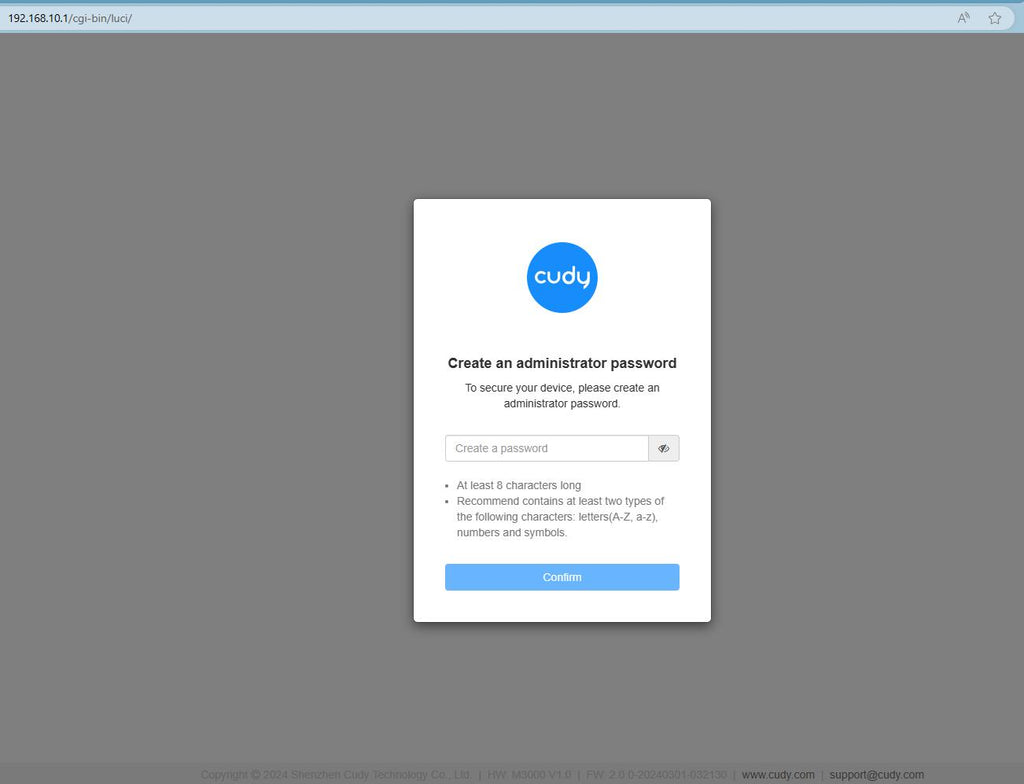
Etapa 3: A página de login abaixo será exibida. Escolha o idioma de exibição da página de gerenciamento web e a senha solicitada é 'administrador' ou precisa criar uma senha.

Solução de problemas:
Se a página de login não aparecer, tente as seguintes etapas de solução de problemas no site:
O que devo fazer se não conseguir acessar a interface web do meu roteador Cudy?
343 comentários
Hi, the password and default password does not get me onto the system to configure the mesh system. Please help.
Dear Mark,
You can try to reset the router to factory default by long pressing the reset button for about 3 seconds. You can release the reset button when the LED flashes.
The default password of the WEB panel will recover to default “admin”. If the firmware version is 2.×.x, you need to create a new password when first login to the web page of the router.
“Hello! Can you please help me reset the router web interface password?”
Hello! Can you please help me reset the router web interface password?
@Bart,
Dear Customer,
Thank you for contacting Cudy support team.
Our technical support has sent you the solutions via email. Please check.
“For example, GL.iNet offers the option for full configuration and device management from an external IP address. Do devices like Cudy also offer this option?”
@Peter,
Dear Customer,
Thank you for contacting Cudy support team.
Our technical support has sent you the solutions via email. Please check.
“Dear Cudy,
I have a WR3000S router here. I decided to change the default LAN address which is used to log in into the admin panel of the router. I successfully changed the address from 192.168.10.1 to 192.168.0.1.
However, I somehow now have a non-cudy admin login panel on 192.168.10.1 with Alcatel banner in the upper left corner. Can I do something with it? I do not want that rouge admin panel to persist on 192.168.10.1. I only want the cudy-panel on newly assigned 192.168.0.1.”