
1. Atsisiųskite naujausią programinę įrangą iš Siuntimų centro.
2. Išpakuokite atsisiųstą failą
3. Įjunkite Cudy įrenginį, palaukite, kol šviesos diodas pradės šviesti.
4. Prisijunkite prie Cudy tinklo per "WiFi" arba "Ethernet".
5. Atidarykite interneto naršyklę ir eikite į http://cudy.net arba http://192.168.10.1.
Išsamesnės informacijos rasite Kaip prisijungti prie "Cudy Router" žiniatinklio sąsajos?"
6. Atnaujinkite programinę įrangą.
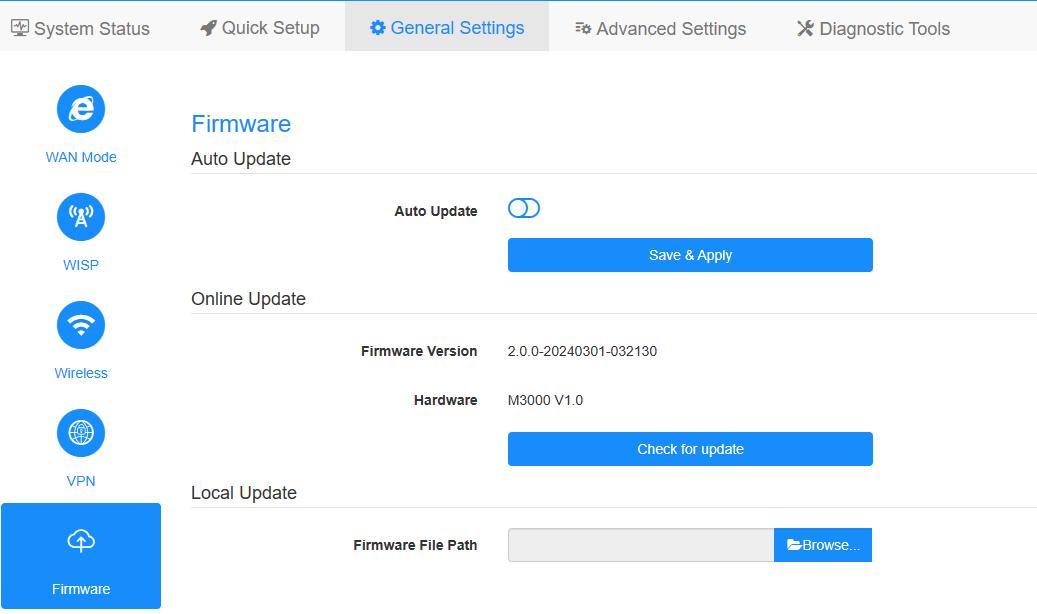
a. Išplėstiniai nustatymai -> Įterptinė programinė įranga, pasirinkite išpakuotą programinę įrangą, kurią norite įkelti.
b. Bendrieji nustatymai->Programinė įranga puslapyje galima atlikti internetinį atnaujinimą ir vietinį atnaujinimą.
Pastaba: Palaikoma tik 2.x.x arba naujesnė programinė įranga.
7. Palaukite 5 minutes, kol maršrutizatorius bus paleistas iš naujo.
187 comments
It is impossible to update the Cudy WR1500 that I bought.
I follow the instructions exactly. I am sure that I am not doing anything wrong.
I try to install the intermediate—L101-1.0.4-20241205-747393-mid-flash.bin first, it tells me that the installation is successful, I wait 3 minutes and then… the led flashes once blue and once red.
I turn off the power, turn it back on after a minute, it works again but the intermediate update is not installed so it does not recognize the latest update 2.3.10
I’ve identified that when IoT devices like Samsung smartwatches and TV boxes like Google TV Streamers are connected, the router cudy P5 becomes unstable and starts restarting.
As a workaround, I isolated those devices on another router, and those annoying restarts stopped.
My question is, could this be related to a bug? The thing is, the Google TV boxes are new, and I recently connected them to the cudy P5’s wifi network.
1. Check if you have enabled the scheduled restart function on the “Advanced Settings” page. If so, disable it. If not, try resetting the router to its factory settings and see if the problem is resolved.
// The function is disabled on the router.
2. If not, you can try updating the firmware to the latest version and check again.
“After updating the Cudy P5 router to firmware version 2.4.23 US, the device restarts every day.”
// I actually downgraded to previous versions and I’m still experiencing the problem. Now I’m connecting each device to the router individually to try to identify if it’s some kind of unusual endpoint behavior. The only new thing I did last week was install Nord VPN on my laptop, and since then I’ve noticed the router restarting frequently. It coincidentally happened around the time of the recent firmware update, which is why I associated the problem with the new version.
Is there a possibility you could investigate this behavior, specifically whether the Nord VPN app is triggering a bug in the router’s firmware?
Is there also a possibility of including a feature that allows us to monitor CPU and memory health, as well as identify the processes consuming the most resources on the router, in order to rule out problems? It’s been very difficult to identify problems without logs because the device keeps restarting without me being able to pinpoint the exact cause. At the moment, I’m just putting two and two together, but I’m not sure if that’s the problem.
@Dear Raj.
We will follow your email again. And will push the firmware update.
“I am writing to report a critical performance bug in my Cudy WR3000S router that severely impacts the 5GHz Wi-Fi performance when using high-speed modes.
I kindly request that you review this specific RRM error in firmware 2.4.6 and provide a corrected firmware update that properly fixes the stability and performance”
Recently I noticed that a new firmware update has been released for the Cudy WR1200, but there’s still no update for the WR3000S. As a WR3000S user, I’m eagerly waiting for a new update to improve performance and fix existing bugs. Could you please let us know when we can expect a new firmware for the WR3000S?"