
1. 最新のファームウェアをダウンロードするダウンロードセンター。
2.ダウンロードしたファイルを解凍します
3. Cudy デバイスの電源をオンにし, LED が点灯するまで待ちます。
4. WiFi またはイーサネット経由で Cudy のネットワークに接続します。
5. ウェブブラウザを開いてhttp://cudy.netまたはhttp://192.168.10.1 です。
詳細については, Cudy ルーターの Web インターフェイスにログインするにはどうすればいいですか?
6. ファームウェアをアップグレードします。
a.詳細設定 -> ファームウェア, 解凍したファームウェアを選択してアップロードします。
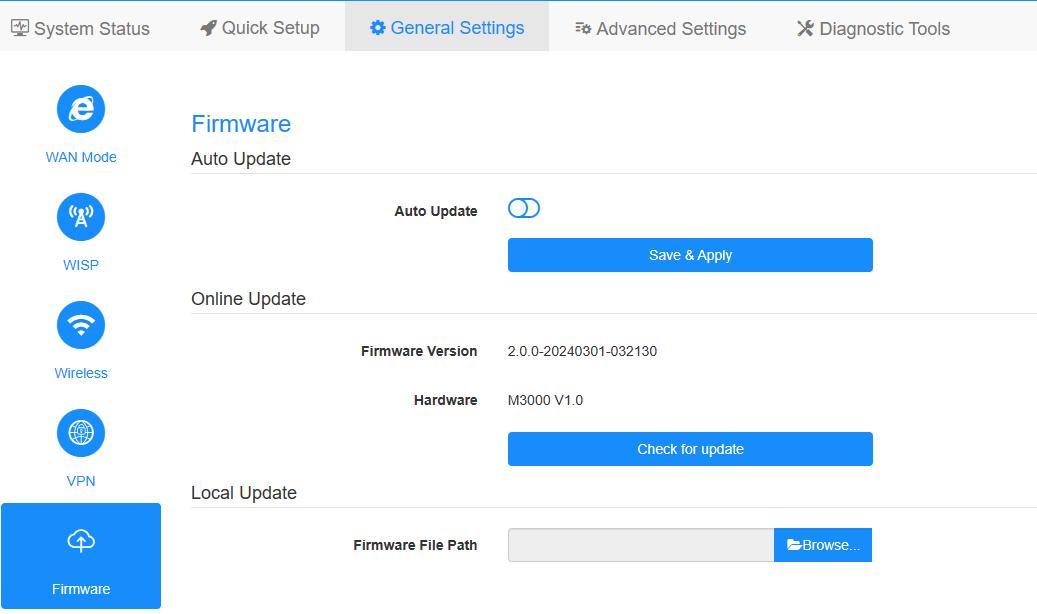
b.一般設定->ファームウェアページではオンライン アップグレードとローカル アップデートを実行できます。
注記: ファームウェア 2.x.x 以上のみサポートされます。
7. ルーターの再起動を 5 分間待ちます。
189件のコメント
Buenas, tengo el Router AX1500 wr1500 1.0 y tiene el firmware 1.0.4 y al tratar de actualizar al ultimo firmware, reinicia el equipo y sigue en el 1.0.4, he trata de colocarlo de fabrica y sigue sin dejarme actualizar el firmware.
Where can I download firmware 1.15.5 for the R700? Please help
@Cher Chadrac,
Merci d’avoir contacté l’équipe d’assistance de Cudy.
La page du portail captif est utilisée par le client pour se connecter à la page web de l’appareil lorsque l’internet est déconnecté.
Si vous souhaitez mettre à jour le micrologiciel de l’appareil, vous pouvez vous connecter à la page web de l’appareil, aller à “Paramètres avancés” — page de fonction “Micrologiciel”.
En outre, vous pouvez essayer d’activer la fonction MAC Repeater si l’internet est déconnecté après l’avoir configuré avec le WiFi principal.
“Vraiment pourquoi cudy a intégré page captif dans son répéteur même !!!
Le répéteur ap 1200 ne fait que demander mot de passe avec page captive à tout le monde…
C’est quoi ces désordres ?
Pire impossible de mettre firmware à jour puffff”
Vraiment pourquoi cudy a intégré page captif dans son répéteur même !!!
Le répéteur ap 1200 ne fait que demander mot de passe avec page captive à tout le monde…
C’est quoi ces désordres ?
Pire impossible de mettre firmware à jour puffff
@Dear Yasir,
I just tested it here in my office. I can’t reproduce this problem. Please try following methods:
1. Reset the router to factory default, then, reinstall it again.
2. Try to change the cable that connect to the WAN port of the router.
3. Try to update back to previous firmware version.
Check if the problem fixed?
“Hi there
Today I purchased a WR1300 router. I could ready 180MB on the 5ghz WiFi .
Afterwards I updated the router to firmware 2.4.4 and I see my WAN port is now max 100MB and I cannot get more than 90MB speeds. Please advise on how to fix this."