
CudyルーターにはWebインターフェースが内蔵されており, この内部Webページはインターネット接続を必要としません。デバイスをWi-Fiまたはイーサネット経由でCudyルーターに接続し, Web管理ページにログインできます。
ステップ1:コンピュータをCudyルーターに接続するには無線または有線。
もし無線: デフォルトの Wi-Fi 名とパスワードは, ルーターの底面ラベルに印刷されています。
もし有線: コンピュータを次のいずれかに接続しますLANポートルータの背面でイーサネット ケーブルを介して接続します。
ステップ2: ウェブブラウザ(Google, Firefox, Edgeなど)を開き, http://cudy.netまたはhttp://192.168.10.1アドレスバーに。
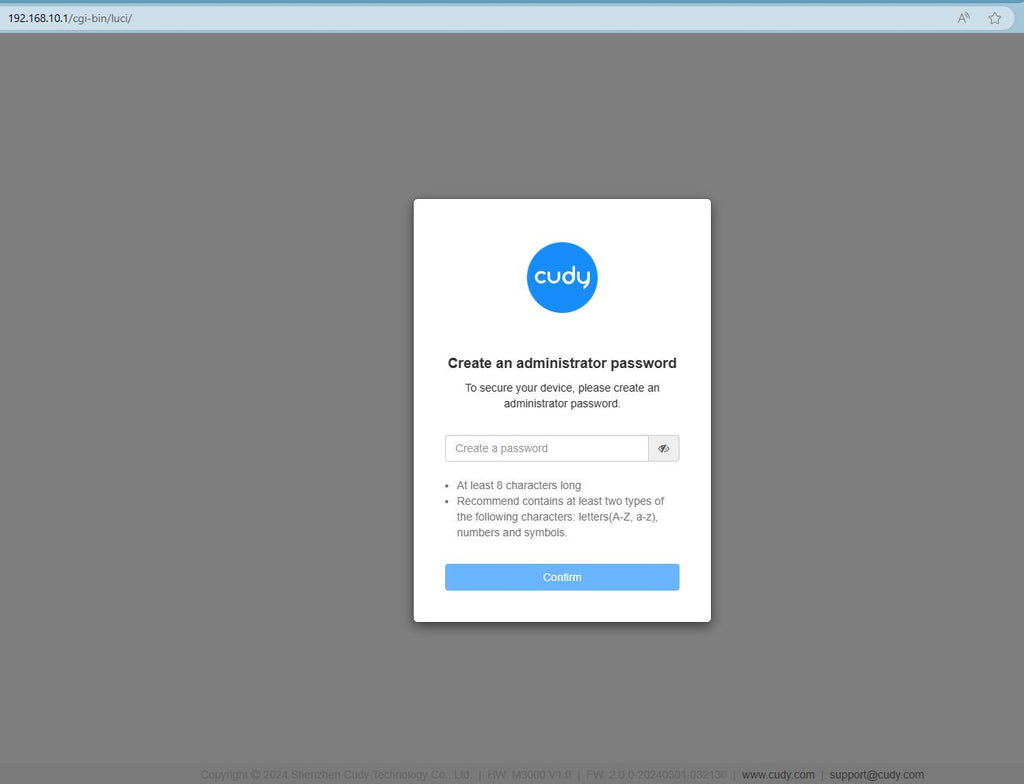
ステップ3: 以下のログインページが表示されます。Web管理ページの表示言語を選択し, 要求されるパスワードは「管理者' または 1 つのパスワードを作成する必要があります。

トラブルシューティング:
ログイン ページが表示されない場合は, Web サイトで次のトラブルシューティング手順を試してください。
351件のコメント
I want to block all hackers
@Dear Zandile,
Sorry, I don’t understand you well. Please tell us more details about the problem.
“Why our wifi disconnect us in I it Ed router”
Why our wifi disconnect us in I it Ed router
@প্রিয় সেতু ঘরামি,
আপনি রিসেট বাটনটি প্রায় ৩ সেকেন্ড ধরে চেপে ধরে রাউটারটিকে ফ্যাক্টরি ডিফল্টে রিসেট করার চেষ্টা করতে পারেন। যখন এলইডি (LED) ফ্ল্যাশ করবে, তখন আপনি রিসেট বাটনটি ছেড়ে দিতে পারেন।
ওয়েব প্যানেলের ডিফল্ট পাসওয়ার্ডটি পুনরুদ্ধার হয়ে ডিফল্ট ‘admin’ হয়ে যাবে। যদি ফার্মওয়্যার সংস্করণটি 2.×.x হয়, তাহলে রাউটারের ওয়েব পেজে প্রথমবার লগইন করার সময় আপনাকে একটি নতুন পাসওয়ার্ড তৈরি করতে হবে।
“Password vule jaoa”
Password vule jaoa