
1. הורד את הקושחה העדכנית ביותר מ-מרכז ההורדות.
2. פתחו את הקובץ שהורדתם
3. הפעל את מכשיר ה-Cudy, המתן עד שנורת ה-LED תידלק באופן קבוע.
4. התחברו לרשת של Cudy באמצעות WiFi או Ethernet.
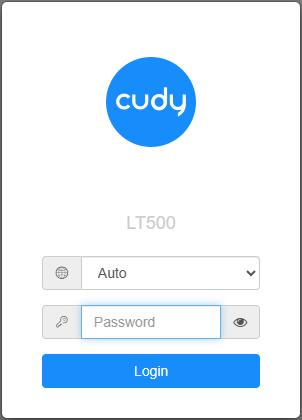
5. פתח דפדפן אינטרנט ועבור אלhttp://cudy.netאוֹhttp://192.168.10.1.
לפרטים, אנא עיינו באיך להתחבר לממשק האינטרנט של הנתב Cudy?
6. שדרג את הקושחה.
א.הגדרות מתקדמות -> קושחה, בחר את הקושחה שפרצת כדי להעלות.
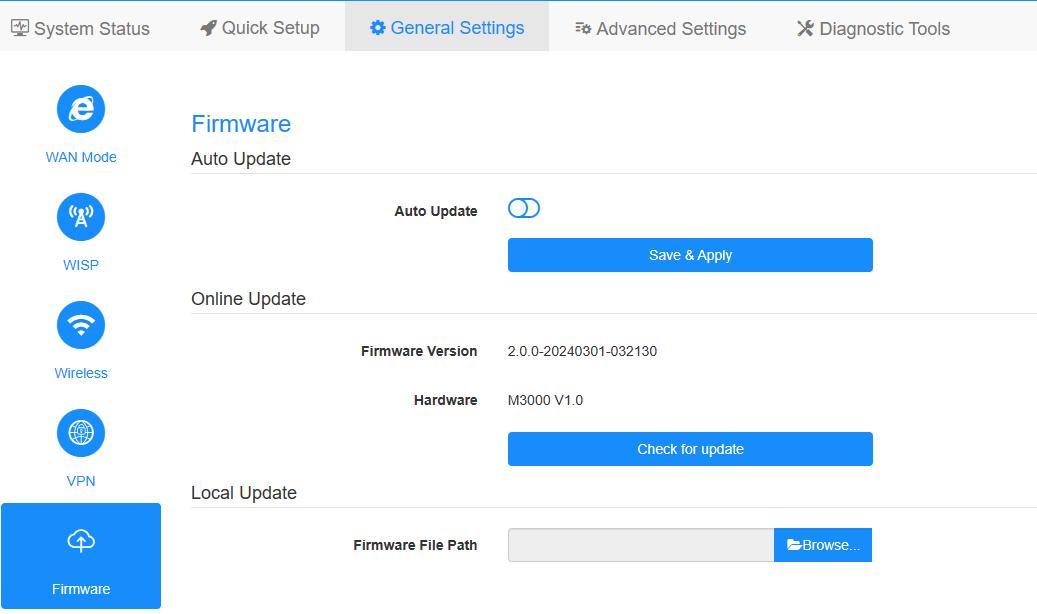
ב.הגדרות כלליות->קושחההדף יכול לבצע שדרוג מקוון ועדכון מקומי.
פֶּתֶקתמיכה רק ב-Firmware 2.x.x ומעלה.
7. המתנה של 5 דקות להפעלה מחדש של הנתב.
181 comments
Vraiment pourquoi cudy a intégré page captif dans son répéteur même !!!
Le répéteur ap 1200 ne fait que demander mot de passe avec page captive à tout le monde…
C’est quoi ces désordres ?
Pire impossible de mettre firmware à jour puffff
@Dear Yasir,
I just tested it here in my office. I can’t reproduce this problem. Please try following methods:
1. Reset the router to factory default, then, reinstall it again.
2. Try to change the cable that connect to the WAN port of the router.
3. Try to update back to previous firmware version.
Check if the problem fixed?
“Hi there
Today I purchased a WR1300 router. I could ready 180MB on the 5ghz WiFi .
Afterwards I updated the router to firmware 2.4.4 and I see my WAN port is now max 100MB and I cannot get more than 90MB speeds. Please advise on how to fix this."
Hi there
Today I purchased a WR1300 router. I could ready 180MB on the 5ghz WiFi .
Afterwards I updated the router to firmware 2.4.4 and I see my WAN port is now max 100MB and I cannot get more than 90MB speeds. Please advise on how to fix this.
Как сменить серийный номер GPON?
Когда вы решите проблему с обновлением прошивки роутера WR1500? Его невозможно обновить. Как можно вообще такое допускать? Отвратительный продукт и сервис.