
Gängige Netzwerktopologie:

Schritt 1:Öffnen Sie einen Webbrowser und gehen Sie zuhttp://cudy.netoderhttp://192.168.10.1Die
Für weitere Einzelheiten sieheWie melde ich mich an der Weboberfläche des Cudy Routers an?
Schritt 2:Das Fenster „Schnelleinrichtung“ wird angezeigt, wählen Sie „WLAN-Repeater, dann geh 'Nächste'Die

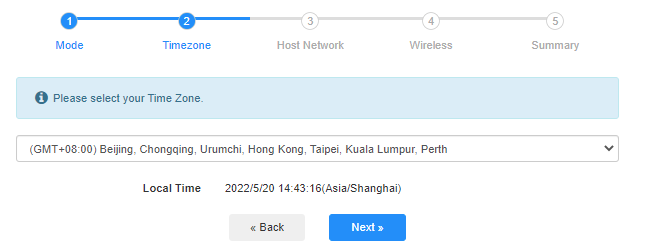
 Schritt 3:Wählen Sie Ihr 'Zeitzone'Die
Schritt 4:Wählen Sie das Hostnetzwerk aus, das Sie erweitern möchten. Klicken Sie auf „Verbinden'Die

 Schritt 5:Geben Sie das WLAN-Passwort des Host-Netzwerks ein.

 Notiz:Stellen Sie sicher, dass das eingegebene WLAN-Passwort korrekt ist, andernfalls kann die Konfiguration nicht erfolgreich sein.
Schritt 6:Passen Sie den WLAN-Namen (SSID) an; das Passwort ist dasselbe wie das Ihres Host-Netzwerks.

 Schritt 7:Klicken Sie auf „Speichern & Anwendenum die Konfiguration abzuschließen.

 Schritt 8:Verbinden Sie Ihre drahtlosen Geräte erneut mit dem neuen WLAN-Netzwerk.

 Notiz:
1. Wenn Sie den WLAN-Extender-Modus mit einem kabelgebundenen Gerät einrichten, kann es sein, dass dieses Gerät nach der Einrichtung keine Internetverbindung hat. Bitte trennen Sie das Ethernet-Kabel und schließen Sie es wieder an oder deaktivieren und aktivieren Sie den Netzwerkadapter, um die neue Verbindung herzustellen.
2. Nach der Einrichtung des Cudy-Routers im WLAN-Extender-Modus wird die IP-Adresse vom Host-Router zugewiesen, und die Standard-IP-Adresse 192.168.10.1 ist nicht mehr für die Anmeldung geeignet. Um sich erneut beim Cudy-Router anzumelden, geben Sie Folgendes ein:http://cudy.net'Geben Sie die IP-Adresse des Cudy-Routers in Ihren Browser ein oder suchen Sie sie in der Clientliste Ihres Host-Routers nach.
67 Kommentare
@Wireless Extender mode,
Dear Customer,
Thanks for contacting the Cudy support team.
Yes, we have plan to add this mode on next firmware update. But I can’t for sure about the time. It will need about 1~2 months.
“Hi, are there any plans to add Wireless Extender mode to the wr6500 router in the next software update? And if, do you have any plans when this update will be released”
Hi, are there any plans to add Wireless Extender mode to the wr6500 router in the next software update? And if, do you have any plans when this update will be released
@David,
Dear Customer,
Thank you for contacting Cudy support team.
Yes, we have plan to add this feature recently. Please wait patiently.
“Hi, are there any plans to add Wireless Extender mode to the WR11000?”
@Dear Sotiris.
R700 is a wired router, doesn’t support WiFi related function.
“I just got the R700 and I can’t see the Wireless / Wisp tabs under General settings.”
Hi, are there any plans to add Wireless Extender mode to the WR11000?