
This tutorial will show you how to setup a VPN tunnel between your Cudy machine and any other computer. ZeroTier is one of the easiest VPN services to configure and it's completely free for up to 50 devices. The entire process, from start to finish, should only take a few minutes.
1. Create ZeroTier Accounts
2. Create a Network
- After you've logged in to ZeroTier, navigate to the Networks tab
- Click Create New Network and your Network ID will be visible in the interface

3. Choose Public or Private Access
There are two ways to manage access: Public or Private
Public Network: Anyone with the Network ID can connect. This is the easiest option but is slightly less secure.
- Click on the Network in the ZeroTier interface
- Under Access Control, select the Public Network option:

Private Network: All machines must be approved through the ZeroTier interface before they can connect. This is the default option and is more secure.
- When machines join the Network (see Step 4), they will need to be approved under the Members section. Just check the box under the Auth? column to approve each machine:
4. Setup Cudy Router
- A. Open a web browser and Login to http://cudy.net/ or http://192.168.10.1/
- B. Go to General Settings -> VPN to set Zerotier, choose Zerotier master and input the Zerotier Network ID. Then click Save and Apply.

- C. If you configure your network as Private network,need to check the box under the Auth? column to approve Cudy Router again.
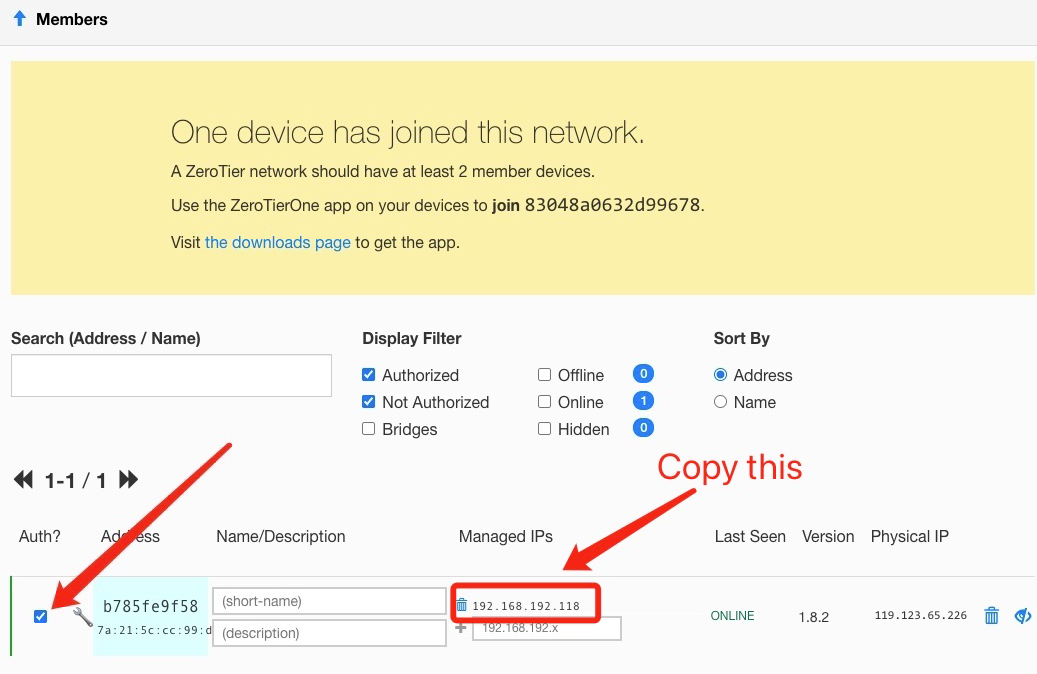
- D. Add Routes for Cudy router.

5. Install ZeroTier App
Download and install the ZeroTier App on all machines you would like to connect.
6. Join machines to network
When the ZeroTier app is running, click Join Network
Enter the Network ID from Step 2 and click Join. If you created a Public Network, you should now be connected. If you created a Private Network, you will need to approve each machine in the ZeroTier interface (see Step 2).
7. Verify connectivity
You can check to see if you've successfully connected by clicking Show Network on the ZeroTier app. The Status should show OK and the Connected box should be checked. You can also try pinging a private IP address of another machine to verify the connection.
8. Remote Access
Then you can remote access cudy router use 192.168.10.1 (192.168.192.118) or the subnet 192.168.10.xxx.
124 yorum
@Dear David Esteban,
Our technical support has sent you the new beta firmware via email. Please update and
check.
“Subject: LT500 V3.0 – Static routing over VPN (ZeroTier) interface
Hello Cudy Support,
I have an LT500 with the following details:
- Hardware: LT500 V3.0
- Firmware: 2.4.16-20250804-150319
I use it as a ZeroTier master in a site-to-site setup with two Cudy X6 routers. On the X6 and on the LT500 V2.0 emulator (FW 2.1.1-20240419), the Static Routing page lets me choose the “VPN” interface, so I can route remote subnets through the ZeroTier tunnel.
On my LT500 V3.0, the Static Routing interface list only shows WAN, LAN, WISP, GUEST and 4G. Without the VPN option I cannot route traffic to the remote networks through ZeroTier, which also breaks access when the router fails over to 4G.
Could you please tell me if there is a firmware for LT500 V3.0 (official or beta) that allows selecting the VPN/ZeroTier interface in Static Routing? If so, I would appreciate it if you could send it to me.
Thank you very much.
Best regards,
David"
@Dear Bolesław,
Our technical support has contacted you via email. Please check.
“Hi, could you share the firmware for my router (WR3000 V1.0 router currently running firmware:
2.4.19-20250828-192837), which support ZeroTier?
Best regards!”
@Dear Fajar,
Our technical support has sent you the firmware via email. Please check.
““Hi,
Please can you send me the firmware for WR3000 V1.0 with ZeroTier?
Regards””
Subject: LT500 V3.0 – Static routing over VPN (ZeroTier) interface
Hello Cudy Support,
I have an LT500 with the following details:
- Hardware: LT500 V3.0
- Firmware: 2.4.16-20250804-150319
I use it as a ZeroTier master in a site-to-site setup with two Cudy X6 routers. On the X6 and on the LT500 V2.0 emulator (FW 2.1.1-20240419), the Static Routing page lets me choose the “VPN” interface, so I can route remote subnets through the ZeroTier tunnel.
On my LT500 V3.0, the Static Routing interface list only shows WAN, LAN, WISP, GUEST and 4G. Without the VPN option I cannot route traffic to the remote networks through ZeroTier, which also breaks access when the router fails over to 4G.
Could you please tell me if there is a firmware for LT500 V3.0 (official or beta) that allows selecting the VPN/ZeroTier interface in Static Routing? If so, I would appreciate it if you could send it to me.
Thank you very much.
Best regards,
David
Hi, could you share the firmware for my router (WR3000 V1.0 router currently running firmware:
2.4.19-20250828-192837), which support ZeroTier?
Best regards!