
Cudy yönlendiricilerinde dahili bir web arayüzü bulunur ve bu dahili web sayfası internet erişimi gerektirmez. Web yönetim sayfasına giriş yapmak için cihazınızı Wi-Fi veya Ethernet üzerinden Cudy yönlendiriciye bağlayabilirsiniz.
Adım 1:Bilgisayarınızı Cudy yönlendiricinize şu şekilde bağlayın:KablosuzveyaKablolu.
EğerKablosuzVarsayılan Wi-Fi adı ve şifresi, yönlendiricinizin alt etiketinde yazılıdır.
EğerKabloluBilgisayarınızı aşağıdaki bağlantı noktalarından birine bağlayın:LAN Bağlantı NoktalarıYönlendiricinin arka tarafındaki bağlantı noktasına bir Ethernet kablosuyla bağlanır.
Adım 2: Bir web tarayıcısı açın (Google, Firefox, Edge, vb.) ve şunu girin:http://cudy.netveyahttp://192.168.10.1adres çubuğunda.
Adım 3Aşağıdaki giriş sayfası açılacaktır. Web yönetim sayfasının görüntüleme dilini seçin ve istenen şifre 'yönetici' veya bir parola oluşturmanız gerekiyor.

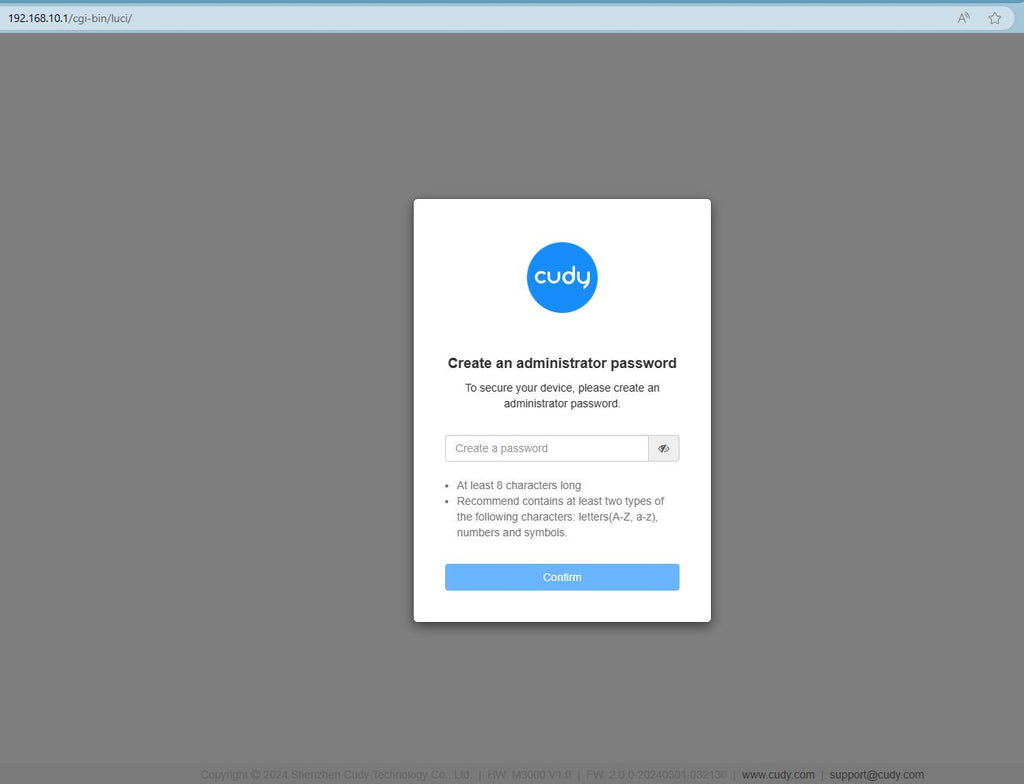
Sorun giderme:
Giriş sayfası görünmüyorsa, web sitesinde aşağıdaki sorun giderme adımlarını deneyin:
Cudy yönlendiricimin web arayüzüne erişemiyorsam ne yapmalıyım?
297 yorum
Password vule jaoa
@Dear Jogan Johnson,
1. What is the model of your Cudy product? You can check the model on the label at the bottom of the device.
2. How do you connect the device? If it is a router, do you connect the WAN port of the Cudy router to the previous device( such as the ONT or modem)?
3. What have you set on the device?
4. What is the problem like?
“Me wifi is not working now please can you help me”
Can you help me now please
Me wifi is not working now please can you help me
@Dear MS LC NAUDE,
You can try to reset the router to factory default by long pressing the reset button for about 3 seconds. You can release the reset button when the LED flashes.
The default password of the WEB panel will recover to default “admin”. If the firmware version is 2.×.x, you need to create a new password when first login to the web page of the router.
“Im trying to login but when I put password Admin in it’s doesn’t work”