
Kopējā tīkla topoloģija:

1.solis: Atveriet tīmekļa pārlūkprogrammu un dodieties uz http://cudy.net vai http://192.168.10.1.
Detalizētu informāciju skatīt Kā pieteikties Cudy maršrutētāja tīmekļa saskarnē?"
2. posms: Atvērsies ātrās iestatīšanas logs, izvēlieties "Bezvadu paplašinātājs", pēc tam dodieties uz "Tālāk".

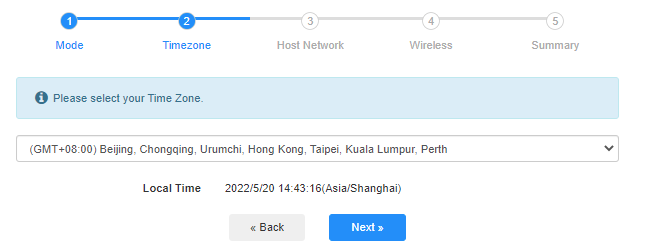
 3. solis: Izvēlieties savu "Laika zonu".
4. posms: Izvēlieties saimniekdatora tīklu, kuru vēlaties paplašināt. Noklikšķiniet uz "Pieslēgt".

 5. solis: Ievadiet galvenā tīkla bezvadu paroli.

 Piezīme: Pārliecinieties, ka ievadītā bezvadu parole ir pareiza, citādi konfigurācija nevar izdoties.
6. solis: Pielāgojiet Wi-Fi nosaukumu (SSID) un paroli, kas ir tāda pati kā jūsu galvenajam tīklam.

 7. solis: Noklikšķiniet uz "Save &; Apply', lai pabeigtu konfigurāciju.

 8.solis: Atkārtoti pieslēdziet bezvadu ierīces jaunajam Wi-Fi tīklam.

 Note:
Note:
1. Ja iestatāt bezvadu pagarinātāja režīmu, izmantojot vadu ierīci, pēc iestatīšanas šai ierīcei var nebūt pieejams internets. Lūdzu, atvienojiet un pievienojiet Ethernet kabeli vai atspējojiet un ieslēdziet tīkla adapteri, lai iegūtu jauno savienojumu.
2. Pēc Cudy maršrutētāja iestatīšanas bezvadu pagarinātāja režīmā IP adresi piešķirs galvenais maršrutētājs, un noklusējuma IP adrese 192.168.10.1 nebūs pieejama. Ja atkal nepieciešams pieteikties Cudy maršrutētājā, ierakstiet pārlūkprogrammā 'http://cudy.net' vai meklējiet Cudy maršrutētāja IP adresi sava galvenā maršrutētāja klientu sarakstā.
69 comments
@Pierluigi, salve,
Potresti indicarmi il modello del tuo dispositivo Cudy?
“con il mio dispositivo questa configurazione non funziona; host router vede il pc collegato a cudy ma il pc non ha accesso a internet. Nel mio caso unica configurazione che funziona e modo Wisp, ma i PC connessi via lan a cudy sono in una sottorete e non vengono visti da host router”
con il mio dispositivo questa configurazione non funziona; host router vede il pc collegato a cudy ma il pc non ha accesso a internet. Nel mio caso unica configurazione che funziona e modo Wisp, ma i PC connessi via lan a cudy sono in una sottorete e non vengono visti da host router
@Уважаемый Василий,
Пожалуйста, попробуйте проверить, есть ли настройки брандмауэра в основной сети Wi-Fi. Например, фильтр MAC-адресов беспроводных устройств. Если да, отключите его и проверьте ещё раз.
Кроме того, попробуйте войти на веб-страницу RE1200 Outdoor и включить функцию «MAC-ретранслятор».
RE1200 Outdoor не поддерживает функцию WISP.
“У меня аналогичная проблема с предыдущим комментарием.
Приобрел роутер cudy AP1200 v1.0 (RE1200 Outdoor V1.0), прошивка 2.4.30-20260603-132148, подключаю его по инструкции в режиме усилитель сигнала , ввожу пароль от основной сети, далее роутер создает две сети с приставкой EXT, пароль как у основной сети оставляю, подключаюсь к новой сети интернета нет. Захожу настройки Cudy вижу: Интернет: НЕТ подключения, Режим работы: Усилитель Wi-Fi. При этом на основном роутере (Keenetic Start) интернет естественно есть. В интернете советуют настроить режим WISP, но в настройках моего роутера Cudy есть только Wireless Access Point, Extender или Client. Что делать?”
У меня аналогичная проблема с предыдущим комментарием.
Приобрел роутер cudy AP1200 v1.0 (RE1200 Outdoor V1.0), прошивка 2.4.30-20260603-132148, подключаю его по инструкции в режиме усилитель сигнала , ввожу пароль от основной сети, далее роутер создает две сети с приставкой EXT, пароль как у основной сети оставляю, подключаюсь к новой сети интернета нет. Захожу настройки Cudy вижу: Интернет: НЕТ подключения, Режим работы: Усилитель Wi-Fi. При этом на основном роутере (Keenetic Start) интернет естественно есть. В интернете советуют настроить режим WISP, но в настройках моего роутера Cudy есть только Wireless Access Point, Extender или Client. Что делать?
@Уважаемый Андрей,
Наша служба технической поддержки отправила вам прошивку по электронной почте. Пожалуйста, проверьте.
“приобрел роутер cudy BE 3600 WR 3600E v1.0, прошивка 2.3.15, подключаю его по инструкции в режиме усилитель сигнала , ввожу все как полагается пароль от основной сети , далее роутер создает две сети с приставкой EXT, пароль как у основной сети оставляю, прохожу все пути мне пишет подключитесь к новой сети , я подключаюсь интернета нет. Захожу в приложение связи Cudy с основным роутером нет, делаю повторно процедуру все так же новая сеть появляется интрнета нет. Что делать ??? До этого был роутер тоже Cudy wr3000 там был режим WISP с этим режимом мне удавалось расширить сеть. В WR3600E такого режима нет, токлько усилитель сигнала.”