
1. Atsisiųskite naujausią programinę įrangą iš Siuntimų centro.
2. Išpakuokite atsisiųstą failą
3. Įjunkite Cudy įrenginį, palaukite, kol šviesos diodas pradės šviesti.
4. Prisijunkite prie Cudy tinklo per "WiFi" arba "Ethernet".
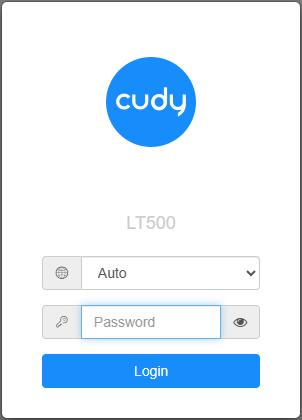
5. Atidarykite interneto naršyklę ir eikite į http://cudy.net arba http://192.168.10.1.
Išsamesnės informacijos rasite Kaip prisijungti prie "Cudy Router" žiniatinklio sąsajos?"
6. Atnaujinkite programinę įrangą.
a. Išplėstiniai nustatymai -> Įterptinė programinė įranga, pasirinkite išpakuotą programinę įrangą, kurią norite įkelti.
b. Bendrieji nustatymai->Programinė įranga puslapyje galima atlikti internetinį atnaujinimą ir vietinį atnaujinimą.
Pastaba: Palaikoma tik 2.x.x arba naujesnė programinė įranga.
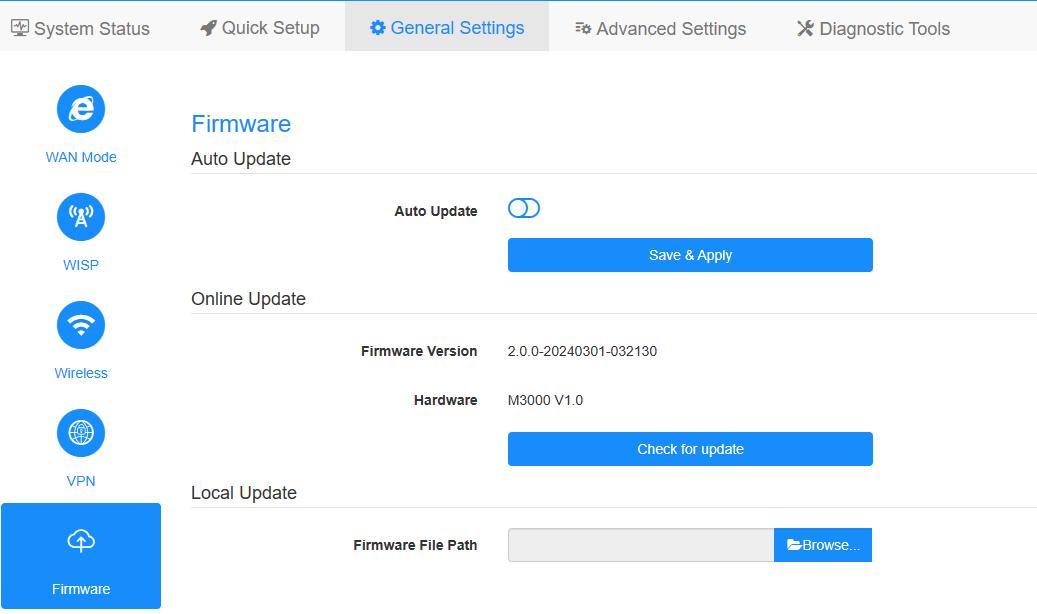
7. Palaukite 5 minutes, kol maršrutizatorius bus paleistas iš naujo.
187 comments
@Dear STEVE,
Thank you for you feedback. We will follow it.
“Hi Cudy Team,
This is a follow-up to my previous report on system-wide reboots on the Cudy P5 (R21) at 802.11ax channel widths of 80 MHz and 160 MHz.
After analyzing the syslog I identified two additional root causes:
1. fw_version: 0×250902ab → WLAN.HK.2.5.0.9, built 2021-06-18 — nearly 5 years old
2. board_id: 0xff → P5-specific BDF not loaded, using generic calibration profile
Both issues have been reported to Cudy support. Stable only at 40 MHz channel width until firmware is updated.""
Hi Cudy Team,
This is a follow-up to my previous report on system-wide reboots on the Cudy P5 (R21) at 802.11ax channel widths of 80 MHz and 160 MHz.
After analyzing the syslog I identified two additional root causes:
1. fw_version: 0×250902ab → WLAN.HK.2.5.0.9, built 2021-06-18 — nearly 5 years old
2. board_id: 0xff → P5-specific BDF not loaded, using generic calibration profile
Both issues have been reported to Cudy support. Stable only at 40 MHz channel width until firmware is updated."
@Dear Dante Salvetti,
Our technical support has sent you the latest firmware via email. Please check.
“Good morning. I have an LT400 EU V1.0 router, firmware version 1.7.4-20210303-112556.
I can’t update the firmware to a later version, either via Wi-Fi or LAN. What can I do? I might need a compatible firmware. Could you send it to me? Thank you. Dante Salvetti”
Good morning. I have an LT400 EU V1.0 router, firmware version 1.7.4-20210303-112556.
I can’t update the firmware to a later version, either via Wi-Fi or LAN. What can I do? I might need a compatible firmware. Could you send it to me? Thank you. Dante Salvetti
@Caro Stefano,
Mi dispiace, non conosco la data esatta. Abbiamo in programma di rilasciare i nuovi firmware uno dopo l’altro. Credo che per il P2 non ci vorrà molto.
“Quando arriva l’aggiornamento software del modello del router wifi SIM 5G CUDY P2 1.0 2026?? Fatemi sapere.”