
Sudėtingi maršrutizatoriai turi integruotą žiniatinklio sąsają ir šiam vidiniam tinklalapiui nereikia interneto prieigos. Norėdami prisijungti prie Cudy maršrutizatoriaus per Wi-Fi arba eternetą, galite prijungti savo įrenginį prie žiniatinklio valdymo puslapio.
1 žingsnis: Prijunkite kompiuterį prie Cudy maršrutizatoriaus per belaidį arba laidinį tinklą.
Jei Nepriklausomas: numatytasis Wi-Fi vardas ir slaptažodis yra atspausdinti ant maršrutizatoriaus apatinės etiketės.
Jei Laidinis: Prijunkite kompiuterį prie vieno iš LAN prievadų, esančių maršrutizatoriaus galinėje dalyje, naudodami eterneto kabelį.
2 žingsnis: Atidarykite interneto naršyklę ("Google", "Firefox", "Edge" ir kt.) ir adreso juostoje įveskite http://cudy.net arba http://192.168.10.1.
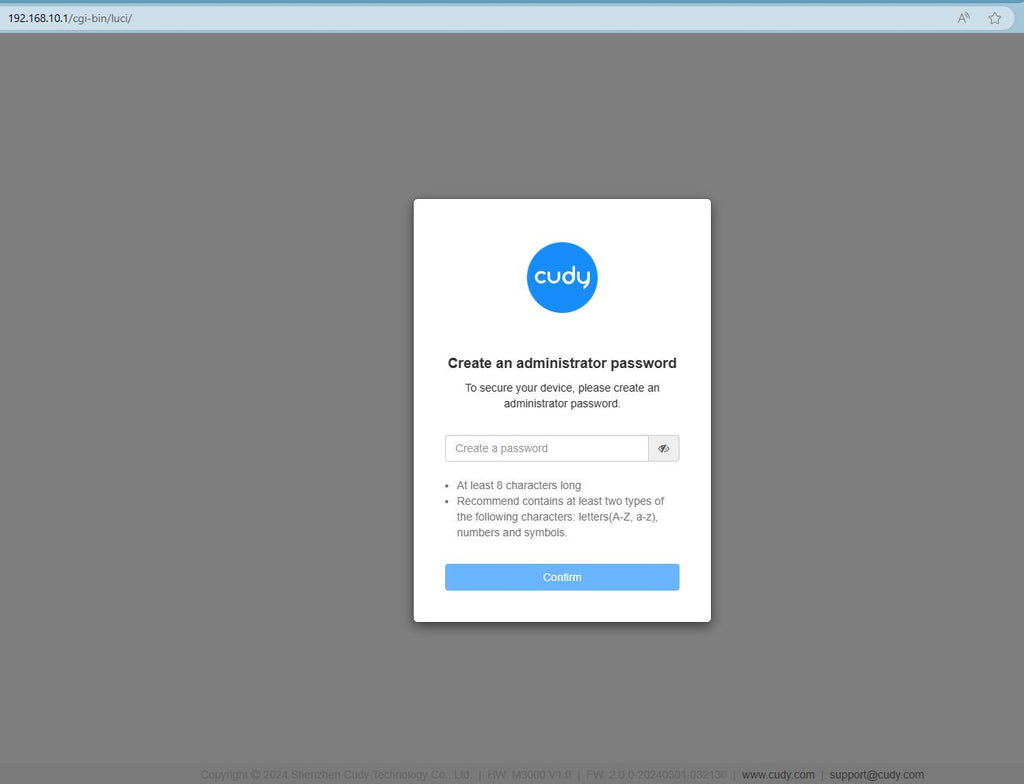
Trečias žingsnis: Atsivers toliau pateiktas prisijungimo puslapis. Pasirinkite žiniatinklio valdymo puslapio rodymo kalbą ir prašomą slaptažodį "admin" arba reikia sukurti vieną slaptažodį.

Gedimų šalinimas:
Jei prisijungimo puslapis nerodomas, pabandykite svetainėje atlikti šiuos trikčių šalinimo veiksmus:
Ką daryti, jei nepavyksta pasiekti Cudy maršrutizatoriaus žiniatinklio sąsajos?
288 comments
Не могу подключить
non riesco ad entrare nel router di CUDY 700
@Dear Dimakatso,
Our technical support has contacted you via email. Please check.
“I can’t access internet with the cuby router”
I can’t access internet with the cuby router
@Dear Zakhele,
Sorry, we don’t have the phone service now. Would you please tell us what is the question you have first?
“My number is 0822821532
My id number 6912255434086”