
Bendroji tinklo topologija:

1 žingsnis: Atidarykite interneto naršyklę ir eikite į http://cudy.net arba http://192.168.10.1.
Detalesnę informaciją rasite Kaip prisijungti prie "Cudy Router" žiniatinklio sąsajos?
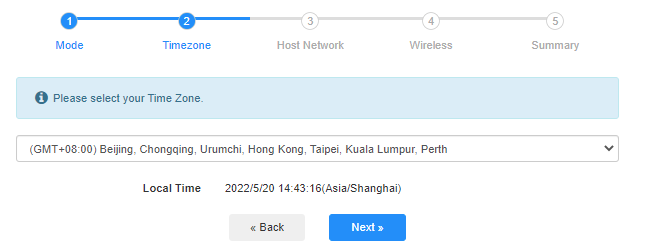
2. žingsnis: Atsidarys greitosios sąrankos langas, pasirinkite "Bezlaidis plėstuvas", tada eikite "Toliau".

 Trečias žingsnis: Pasirinkite "Vaiko juostą".
4 etapas: Pasirinkite norimą išplėsti kompiuterių tinklą. Spustelėkite "Prijungti".

 5-asis žingsnis: Įveskite priimančiojo tinklo belaidžio ryšio slaptažodį.

 Pastaba: Įsitikinkite, kad įvestas belaidžio ryšio slaptažodis yra teisingas, kitaip konfigūracija nebus sėkminga.
Šeštas žingsnis: Pritaikykite Wi-Fi pavadinimą (SSID) ir slaptažodį, kuris sutampa su jūsų pagrindinio tinklo slaptažodžiu.

 Step 7: Spustelėkite "Save &; Apply", kad užbaigtumėte konfigūravimą.

 8-as žingsnis:Perjunkite belaidžius įrenginius prie naujo Wi-Fi tinklo.

 Pastaba:
1. Jei nustatote belaidžio plėstuvo režimą naudodami laidinį įrenginį, po nustatymo šis įrenginys gali neturėti interneto. Atjunkite ir prijunkite eterneto kabelį arba išjunkite ir įjunkite tinklo adapterį, kad įgytumėte naują ryšį.
2. Nustačius Cudy maršrutizatorių belaidžio plėstuvo režimu, IP adresą priskirs pagrindinis maršrutizatorius, o numatytuoju IP adresu 192.168.10.1 prisijungti nebus galima. Jei vėl reikia prisijungti prie Cudy maršrutizatoriaus, naršyklėje įveskite "http://cudy.net' arba ieškokite Cudy maršrutizatoriaus IP adreso priimančiojo maršrutizatoriaus klientų sąraše.
69 comments
I have the LT700 and i bough a cellular and wifi puck for a motohome . im hoping to connect the wifi part to one of the cellular ports to increase wifi range while roaming , is this possible ?
@Dear Isaac,
Yes, you can do as you think.
“Can the repeater be set to repeater mode and be connected via ethernet to a device to provide internet connection?”
Can the repeater be set to repeater mode and be connected via ethernet to a device to provide internet connection?
У меня в настройках роутера Cudy GP1200 в настройках отсутствует пункт куда можно записать серийный номер устройства. Как можно перепрошить роутер и где найти прошивку.
@Уважаемый Роман,
Наша техническая поддержка связалась с вами по электронной почте. Пожалуйста, проверьте.
“У меня на роутере Куди lt500d быстрая настройка начинается с выбора часового пояса и пункта Mode нет, как мне добраться до настроек operation mode? Прошу ответить на эл адрес.
Так же не получилось подключить интернет через wan порт. Перепробовал все настройки, не знаю что еще попробовать.
При подключении через 4g все работает, но скорость 20мбит, а если сим карту переставить в телефон, то 70 мбит в том же месте. Не подскажете как лучше использовать этот прибор, потому как по основному назначению он своих функций не выполняет.”