
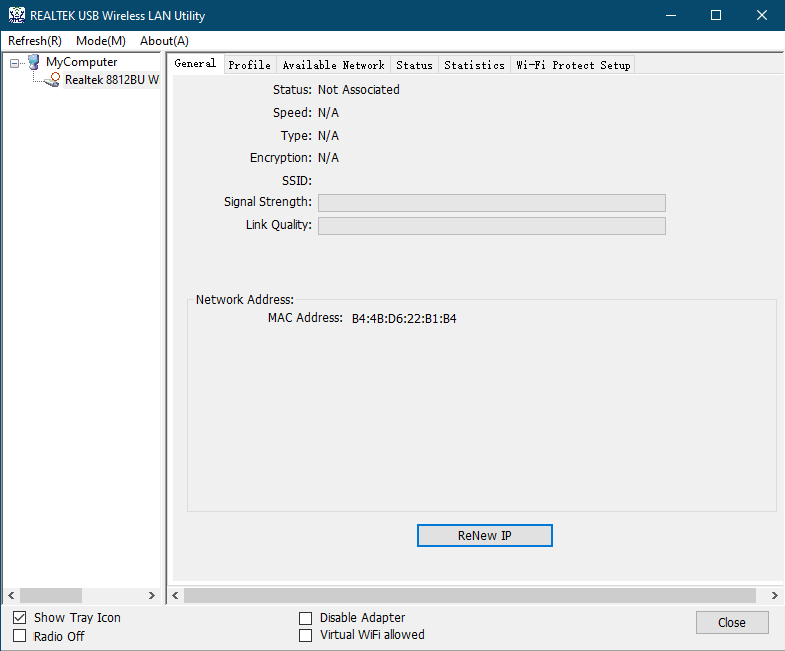
חלק מהמשתמשים רוצים להתקין רק את מנהל ההתקן, ולא רוצים להתקין את כלי השירות 'REALTEK USB Wireless LAN Utility'. לאחר מכן, המשתמשים ינהלו את חיבור ה-Wi-Fi באמצעות כלי השירות המוגדר כברירת מחדל של Windows במקום 'REALTEK USB Wireless LAN Utility'.
| תוכנית שירות LAN אלחוטית USB של REALTEK (לא מומלץ) |
כלי השירות המוגדר כברירת מחדל של Windows (מוּמלָץ) |
 |
 |
1) הסר את מתאם ה-Wi-Fi מסוג USB מהמחשב שלך.
2) הסר את כל התקני ה-USB האחרים מהמחשב שלך מלבד המקלדת והעכבר.
3) הסר את מנהל ההתקן ותוכנית השירות שהתקנת עבור מתאם ה-Wi-Fi USB.
4) הפעל מחדש את המחשב.
5) הסר את הקבצים והספריות הבאים במחשב שלך אם הם קיימים. (או, תוכל לשנות את שמם כדי לשמור אותם.)
C:\Windows\System32\drivers\rtwlanu.sys
C:\Program Files\Realtek
C:\Program Files (x86)\Realtek\מנהל התקן רשת אלחוטית USB
C:\Program Files (x86)\Realtek\כלי עזר לרשת אלחוטית USB
6) סגור את כל כלי השירות המיותרים.
7) השבת את חומת האש, כולל Windows Defender.
8) הורידו את מנהל ההתקן העדכני ביותר מכתובת האתר הבאה והפעילו את הקובץ setup.exe.
2 comments
@
Dear Duane,
You can download the driver of your adapter on the website below.
https://www.cudy.com/pages/download-center/search
In addition, you can also use some software that can help the computer to install driver of the hardware. like Driver Booster, etc.
http://www.iobit.com/en/driver-booster.php
“This website is a piece of shit. Nothing works and I will be returning your shit wifi card, too. How should I install something without drivers you morons.”
This website is a piece of shit. Nothing works and I will be returning your shit wifi card, too. How should I install something without drivers you morons.