
תכונת Port Forwarding (העברת פורטים) מאפשרת למחשבים מרוחקים באינטרנט להתחבר למחשב או שירות ספציפיים בתוך רשת מקומית פרטית.
שירותים שונים משתמשים ביציאות שירות שונות, אנא ודא את מספר יציאת השירות לפני ביצוע התצורה.
חָשׁוּב:
ודא שנתב Cudy מקבל כתובת IP ציבורית (WAN IP) מספק שירותי האינטרנט שלך. אם מדובר בכתובת IP פרטית, פירוש הדבר שיש התקן NAT נוסף מול Cudy. עליך לפתוח גם את פורטי השירות במכשיר זה.
כדי לוודא שכתובת ה-IP היא ציבורית או פרטית, אנא עיינו בקישור הזה:
http://en.wikipedia.org/wiki/Private_network
איך לבדוק את כתובת ה-IP של ה-WAN של Cudy?
נתב אלחוטי ורשת (מצב מערכת->WAN->מצב)

נתב 4/5 (מצב מערכת->סלולרי/4G->מצב)

פֶּתֶק:
1. בדרך כלל, אם ה-IP הציבורי וכתובת ה-IP זהות, פירוש הדבר שיש לך IP ציבורי. כתובת ה-IP היא כתובת ה-IP של ה-WAN שאתה מקבל מספק שירותי האינטרנט שלך. כתובת ה-IP הציבורית הנ"ל היא כתובת ה-IP שהמכשיר השני יכול למצוא אותך דרך האינטרנט. לכן, אם הנתב של Cudy מקבל כתובת IP פרטית, עליך להבין איזה מכשיר משתמש ב-IP ציבורי זה ולפתוח בו פורטים.
2. עבור רוב הנתבים הסלולריים, ספק שירותי האינטרנט בדרך כלל נותן את כתובת ה-IP הפרטית. לכן, אם ברצונך לבצע העברת פורטים, אנא צור קשר עם ספק שירותי האינטרנט שלך כדי שיקצה לך כתובת IP ציבורית או יבצע את העברת הפורטים מטעמו.
שלב 1פתח דפדפן אינטרנט ועבור אלhttp://cudy.netאוֹhttp://192.168.10.1.
לפרטים, אנא עיינו באיך להתחבר לממשק האינטרנט של נתב Cudy?
שלב 2: לחץהגדרות מתקדמות -> העברת פורטיםב-רֶשֶׁתסָעִיף.

שלב 3:נְקִישָׁהלְהוֹסִיףכדי להוסיף ערך אחד לרשימה. הזינו את הפרמטרים כרצונכם בשדה כפי שמופיע למטה.
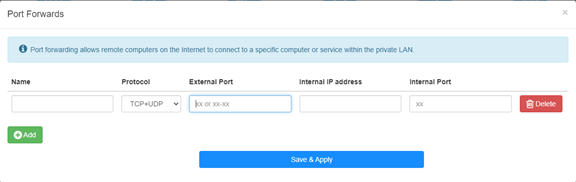
לְדוּגמָה:בהתאם להגדרות הבאות, יציאת TCP 5000, יציאת UDP 5001 ויציאת TCP/UDP 6000 של המארח 192.168.10.18 ייפתחו לאינטרנט.

שֵׁם:
שם הערך, המשמש לקידום הזיכרון
פּרוֹטוֹקוֹל:
TCP, UDP או TCP+UDP
יציאה חיצונית:
יציאת שירות בצד ה-WAN שאליה ניתן לגשת מהאינטרנט
כתובת IP פנימית:
כתובת ה-IP של המארח, שתפתח את הפורט לאינטרנט
יציאה פנימית:
יציאת השירות של המארח ברשת המקומית (LAN)
פֶּתֶק:
באופן כללי, יציאה פנימית זהה ליציאה חיצונית.
שלב 4לחץ על 'שמור והחל' כדי לשמור את ההגדרות.
עבור לדף הסטטוס ובדוק את כתובת ה-IP של הנתב (WAN). כעת תוכל לנסות להשתמש במספר היציאה http:// WAN IP: כדי לבקר בשירות שפתחת.
42 comments
@Dear Giulio,
If the device you want to access is a windows computer. Please try to disable the firewall of the cpmputer and try again.
In addition, the device you want to access must set the correct gateway IP address (which is the LAN IP address of R700).
“I’m setting up a Wireguard vpn server on R700. The connection is successful and I can access the R700 web interface but no other IP. It seems that the vpn is not routed correctly. But in the router interface there are no advanced commands to manage the nat and I can’t access via ssh. How can it be solved”
I’m setting up a Wireguard vpn server on R700. The connection is successful and I can access the R700 web interface but no other IP. It seems that the vpn is not routed correctly. But in the router interface there are no advanced commands to manage the nat and I can’t access via ssh. How can it be solved
@Dear David,
I think the WAN IP address is not the public IP address. So the Port Forwards function will not work if you want to access it from the internet.
Is it possible to use the VPN function to do this?
“Hi. I have public IP address, but it’s not the same addres which I get from ISP DHCP (probably CGNAT).
How can I enter my public address during port forwarding setting?”
Hi. I have public IP address, but it’s not the same addres which I get from ISP DHCP (probably CGNAT).
How can I enter my public address during port forwarding setting?
@David,
Dear Customer,
Thank you for contacting Cudy support team. Our technical support has contacted you via email. Please check.
Setup Cudy Mesh network.
WR1300 unit is primary and has firmware 2.3.9.
Setup port forwarding.
Setup DDNS with no-ip with address XXX.ddns.net.
Can connect when on Internet.
When on LAN using XXX.ddns.net won’t work. Ports are the same. IP address works.
How do I enable NAT loopback to get it to work?