
Cudy ruuteritel on sisseehitatud veebiliides ja see sisemine veebileht ei nõua internetiühendust. Veebihalduslehele sisselogimiseks saate ühendada oma seadme Cudy ruuteriga Wi-Fi või Etherneti kaudu.
Samm 1: Ühendage oma arvuti Cudy ruuteriga Vahejuhtmeta või kaabli kaudu.
Kui juhtmeta: Wi-Fi vaikimisi nimi ja parool on trükitud ruuteri alumisele sildile.
Kui juhtmeta: Wi-Fi vaikimisi nimi ja parool on trükitud ruuteri alumisele sildile.Kui kaabel: Ühendage arvuti ühe ruuteri tagaküljel asuva LAN-pordi külge Ethernet-kaabli abil.
Samm 2: Avage veebilehitseja (Google, Firefox, Edge jne.) ja sisestage aadressiribale http://cudy.net või http://192.168.10.1.
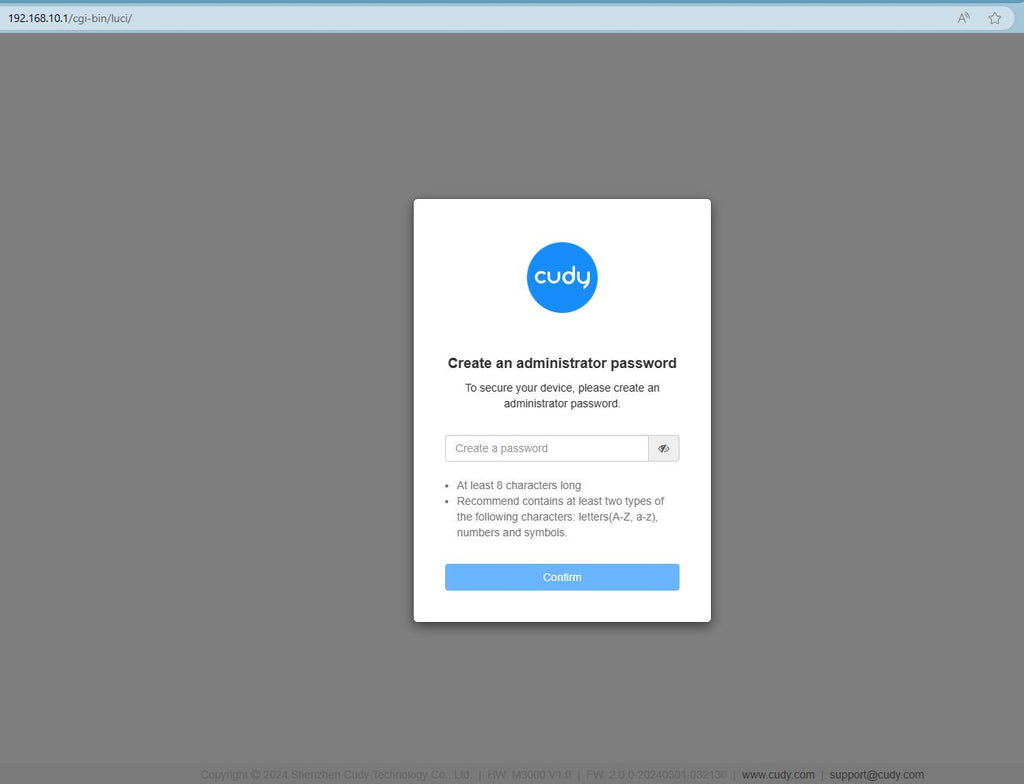
Samm 3: Avaneb alltoodud sisselogimisleht. Valige veebihalduslehe kuvamiskeel ja nõutav parool on "admin" või peate looma ühe parooli.

Veaotsing:
Kui sisselogimisleht ei ilmu, proovige veebilehel järgmisi tõrkeotsingu samme:
Mida teha, kui ma ei pääse oma Cudy ruuteri veebiliidesele ligi?
288 comments
@Dear MS LC NAUDE,
You can try to reset the router to factory default by long pressing the reset button for about 3 seconds. You can release the reset button when the LED flashes.
The default password of the WEB panel will recover to default “admin”. If the firmware version is 2.×.x, you need to create a new password when first login to the web page of the router.
“Im trying to login but when I put password Admin in it’s doesn’t work”
Im trying to login but when I put password Admin in it’s doesn’t work
@Estimada Lucrecia,
Te sugiero que instales la aplicación Cudy para gestionar tu router. Así podrás cambiar la contraseña de la red wifi fácilmente.
“Quiero cambiar la clave del wifi”
Quiero cambiar la clave del wifi
@Dear Arafat,
You can login to web page of the router.Switch the browser mode from phone to computer. Then go to the “Advanced Settings” — “Reset” function page and reset the router to factory default.
“How do I reset WiFi and login on mobile?”