
Cudy ruuteritel on sisseehitatud veebiliides ja see sisemine veebileht ei nõua internetiühendust. Veebihalduslehele sisselogimiseks saate ühendada oma seadme Cudy ruuteriga Wi-Fi või Etherneti kaudu.
Samm 1: Ühendage oma arvuti Cudy ruuteriga Vahejuhtmeta või kaabli kaudu.
Kui juhtmeta: Wi-Fi vaikimisi nimi ja parool on trükitud ruuteri alumisele sildile.
Kui juhtmeta: Wi-Fi vaikimisi nimi ja parool on trükitud ruuteri alumisele sildile.Kui kaabel: Ühendage arvuti ühe ruuteri tagaküljel asuva LAN-pordi külge Ethernet-kaabli abil.
Samm 2: Avage veebilehitseja (Google, Firefox, Edge jne.) ja sisestage aadressiribale http://cudy.net või http://192.168.10.1.
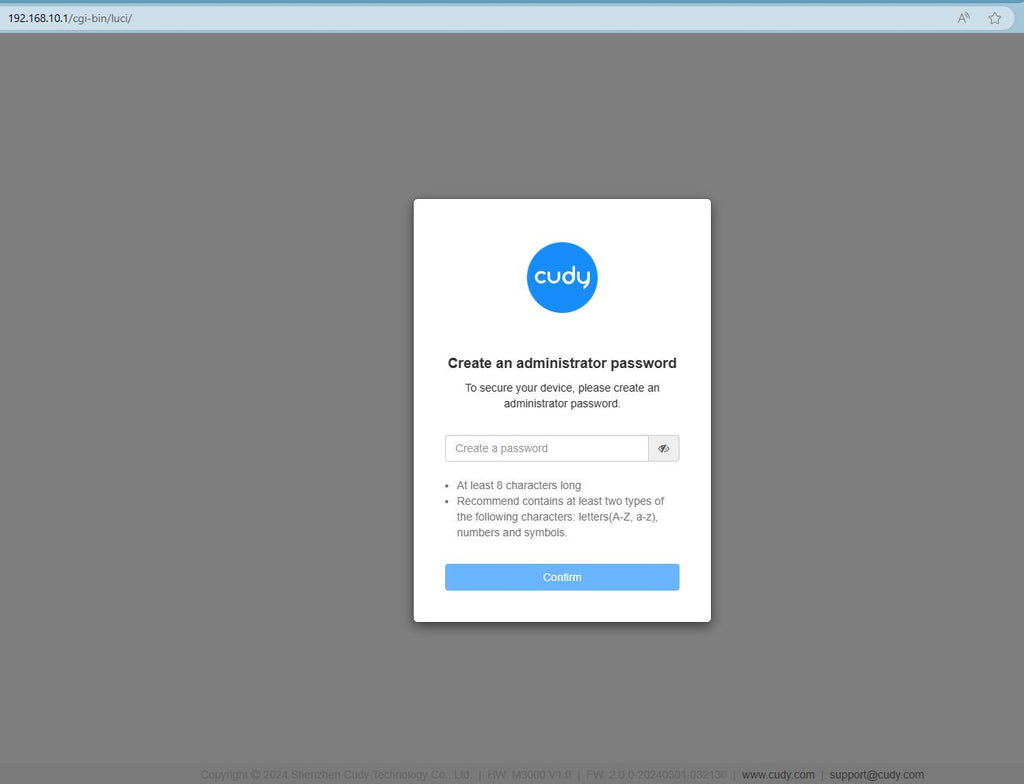
Samm 3: Avaneb alltoodud sisselogimisleht. Valige veebihalduslehe kuvamiskeel ja nõutav parool on "admin" või peate looma ühe parooli.

Veaotsing:
Kui sisselogimisleht ei ilmu, proovige veebilehel järgmisi tõrkeotsingu samme:
Mida teha, kui ma ei pääse oma Cudy ruuteri veebiliidesele ligi?
288 comments
I have the same problem. I cannot to log in to cudy
“I’m being asked for a password, even though I didn’t set one, and resetting to factory settings doesn’t work. What could be the password if the default password doesn’t work?”
Dear Sergey, Please take screenshot of the login page and send email to supportcudy.com for checking.
“I’m being asked for a password, even though I didn’t set one, and resetting to factory settings doesn’t work. What could be the password if the default password doesn’t work?”
I’m being asked for a password, even though I didn’t set one, and resetting to factory settings doesn’t work. What could be the password if the default password doesn’t work?
@عزيزي أنس، ما هي كلمة المرور؟ هل هي كلمة مرور الواي فاي أم كلمة مرور المدير لتسجيل الدخول إلى صفحة الويب الخاصة بالجهاز؟
عادةً، يمكنك تغييرها من صفحة إدارة الويب الخاصة بالجهاز. جرّب.
“تريد تغيير كلمة المرور”
@Dear Denn,
Sorry, for now, Cudy routers don’t support logout function. We will add this feature in near future. For now, you can just close the web page of the router.
“How to log in to the Cudy Router web interface is clear. And how to exit correctly?”