
Cudy ruuteritel on sisseehitatud veebiliides ja see sisemine veebileht ei nõua internetiühendust. Veebihalduslehele sisselogimiseks saate ühendada oma seadme Cudy ruuteriga Wi-Fi või Etherneti kaudu.
Samm 1: Ühendage oma arvuti Cudy ruuteriga Vahejuhtmeta või kaabli kaudu.
Kui juhtmeta: Wi-Fi vaikimisi nimi ja parool on trükitud ruuteri alumisele sildile.
Kui juhtmeta: Wi-Fi vaikimisi nimi ja parool on trükitud ruuteri alumisele sildile.Kui kaabel: Ühendage arvuti ühe ruuteri tagaküljel asuva LAN-pordi külge Ethernet-kaabli abil.
Samm 2: Avage veebilehitseja (Google, Firefox, Edge jne.) ja sisestage aadressiribale http://cudy.net või http://192.168.10.1.
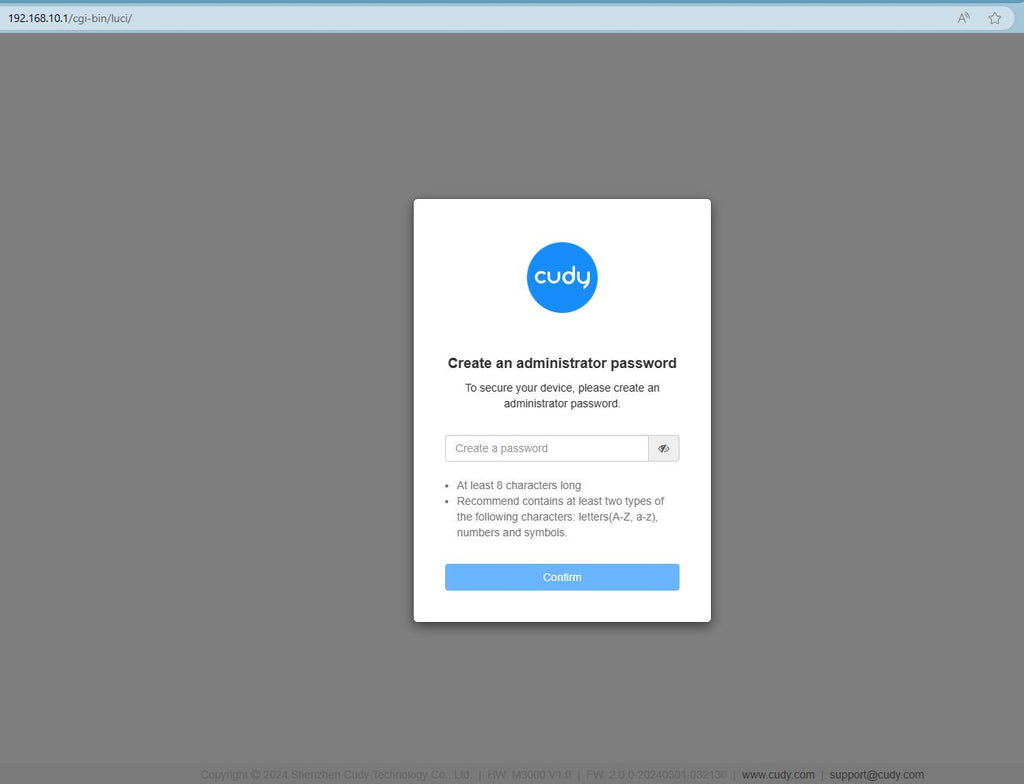
Samm 3: Avaneb alltoodud sisselogimisleht. Valige veebihalduslehe kuvamiskeel ja nõutav parool on "admin" või peate looma ühe parooli.

Veaotsing:
Kui sisselogimisleht ei ilmu, proovige veebilehel järgmisi tõrkeotsingu samme:
Mida teha, kui ma ei pääse oma Cudy ruuteri veebiliidesele ligi?
313 comments
حظر الاشخاص من النت
حظر الاشخاص
@Dear Tommy,
Which step you fail? Please tell us more details.
“Im struggling to login”
Im struggling to login
contraseña