
Cudy routers have a build-in web interface and this internal web page doesn't require the internet access. You can connect your device to the Cudy Router via Wi-Fi or Ethernet to log into the web management page.
Step 1: Connect your computer to your Cudy Router via Wireless or Wired.
If Wireless: The default Wi-Fi name and password are printed on your router's bottom label.
If Wired: Connect your computer to one of LAN Ports on the back of the router via an Ethernet cable.
Step 2: Open a web browser (Google, Firefox, Edge, etc.) and enter http://cudy.net or http://192.168.10.1 in the address bar.
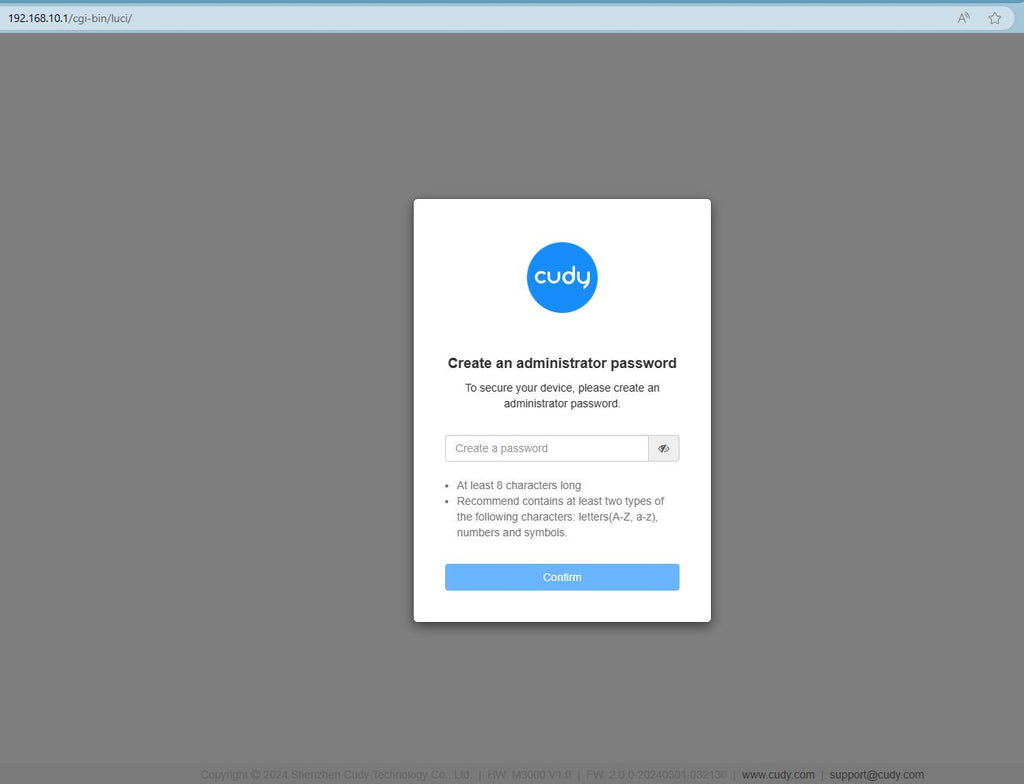
Step 3: The login page below will pop up. Choose the display language of the web management page and the requested password is 'admin' or need to create one password.

Troubleshooting:
If the login page doesn't show up, try the following troubleshooting steps on the website:
What should I do if I can't access the web interface of my Cudy router?
298 comentarios
Что делать если не работает пароль “admin”
Password
@Dear Dimpho,
Thank you for contacting Cudy support team.
Please login to the web page of the router, go to “Advanced Settings” -“System”—-“Admin Account” to change the admin password of the router.
“I need to change admin password please 😩”
I need to change admin password please 😩
@Dear Dimpho,
So is there any problem about it? Please tell me details.
“I need to connect to my wifi”