
Izpētītajiem maršrutētājiem ir iebūvēta tīmekļa saskarne, un šai iekšējai tīmekļa lapai nav nepieciešama piekļuve internetam. Lai pieteiktos tīmekļa pārvaldības lapā, varat savienot ierīci ar Cudy maršrutētāju, izmantojot Wi-Fi vai Ethernet.
1. solis: Savienojiet datoru ar Cudy maršrutētāju, izmantojot bezvadu vai vadu.
Ja Bezvadu: noklusējuma Wi-Fi vārds un parole ir uzdrukāti uz jūsu maršrutētāja apakšējās etiķetes.
Ja vadu: Savienojiet datoru ar vienu no LAN porti maršrutētāja aizmugurē, izmantojot Ethernet kabeli.
2. solis: Atveriet tīmekļa pārlūkprogrammu (Google, Firefox, Edge u. c.) un ievadiet http://cudy.net vai http://192.168.10.1 adreses joslā.
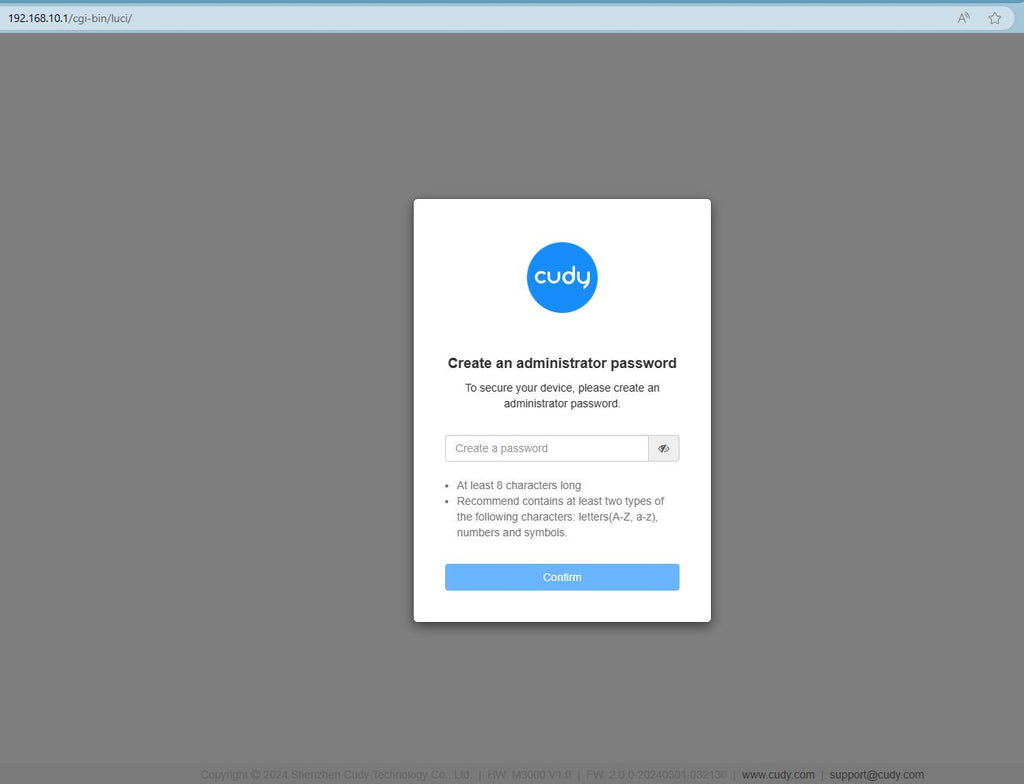
3. solis: Parādīsies zemāk redzamā pieteikšanās lapa. Izvēlieties tīmekļa pārvaldības lapas displeja valodu un pieprasītā parole ir "admin" vai arī ir nepieciešams izveidot vienu paroli.

Rezultātu novēršana:
Ja pieteikšanās lapa netiek parādīta, izmēģiniet tīmekļa vietnē veikt šādus problēmu novēršanas soļus:
Kā rīkoties, ja nevar piekļūt sava Cudy maršrutētāja tīmekļa saskarnei?
310 comments
Help me to change my password please
Olá, me ensina a bloquear sites pelo roteador no modelo wr1300???
@Chimwemwe,
Dear Customer,
Thank you for contacting Cudy support team.
Our technical support has contacted you via email. Please check.
“I want you help me to login and change PIN”
Login and change PIN
I want you help me to login and change PIN