Kā pieteikties Cudy maršrutētāja tīmekļa interfeisā?

Izpētītajiem maršrutētājiem ir iebūvēta tīmekļa saskarne, un šai iekšējai tīmekļa lapai nav nepieciešama piekļuve internetam. Lai pieteiktos tīmekļa pārvaldības lapā, varat savienot ierīci ar Cudy maršrutētāju, izmantojot Wi-Fi vai Ethernet.

1. solis: Savienojiet datoru ar Cudy maršrutētāju, izmantojot bezvadu vai vadu.

Ja Bezvadu: noklusējuma Wi-Fi vārds un parole ir uzdrukāti uz jūsu maršrutētāja apakšējās etiķetes.

Ja vadu: Savienojiet datoru ar vienu no LAN porti maršrutētāja aizmugurē, izmantojot Ethernet kabeli.

2. solis: Atveriet tīmekļa pārlūkprogrammu (Google, Firefox, Edge u. c.) un ievadiet http://cudy.net vai http://192.168.10.1 adreses joslā.

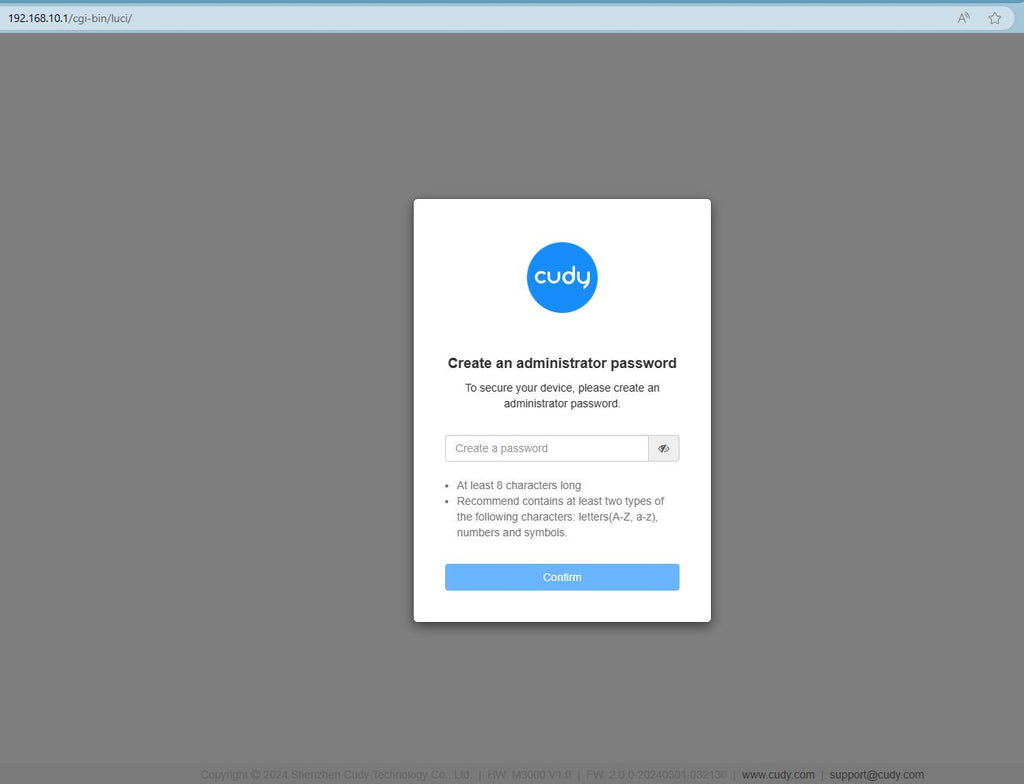
3. solis: Parādīsies zemāk redzamā pieteikšanās lapa. Izvēlieties tīmekļa pārvaldības lapas displeja valodu un pieprasītā parole ir "admin" vai arī ir nepieciešams izveidot vienu paroli.

Rezultātu novēršana:

Ja pieteikšanās lapa netiek parādīta, izmēģiniet tīmekļa vietnē veikt šādus problēmu novēršanas soļus:

Kā rīkoties, ja nevar piekļūt sava Cudy maršrutētāja tīmekļa saskarnei?

Back to blog

267 comments

Dear Mark,

You can try to reset the router to factory default by long pressing the reset button for about 3 seconds. You can release the reset button when the LED flashes.
The default password of the WEB panel will recover to default “admin”. If the firmware version is 2.×.x, you need to create a new password when first login to the web page of the router.

“Hello! Can you please help me reset the router web interface password?”

Support

Hello! Can you please help me reset the router web interface password?

Mark

@Bart,
Dear Customer,
Thank you for contacting Cudy support team.
Our technical support has sent you the solutions via email. Please check.

“For example, GL.iNet offers the option for full configuration and device management from an external IP address. Do devices like Cudy also offer this option?”

Support Cudy

@Peter,
Dear Customer,
Thank you for contacting Cudy support team.
Our technical support has sent you the solutions via email. Please check.

“Dear Cudy,
I have a WR3000S router here. I decided to change the default LAN address which is used to log in into the admin panel of the router. I successfully changed the address from 192.168.10.1 to 192.168.0.1.
However, I somehow now have a non-cudy admin login panel on 192.168.10.1 with Alcatel banner in the upper left corner. Can I do something with it? I do not want that rouge admin panel to persist on 192.168.10.1. I only want the cudy-panel on newly assigned 192.168.0.1.”

Support Cudy

For example, GL.iNet offers the option for full configuration and device management from an external IP address. Do devices like Cudy also offer this option?

Bart

Leave a comment