
Izpētītajiem maršrutētājiem ir iebūvēta tīmekļa saskarne, un šai iekšējai tīmekļa lapai nav nepieciešama piekļuve internetam. Lai pieteiktos tīmekļa pārvaldības lapā, varat savienot ierīci ar Cudy maršrutētāju, izmantojot Wi-Fi vai Ethernet.
1. solis: Savienojiet datoru ar Cudy maršrutētāju, izmantojot bezvadu vai vadu.
Ja Bezvadu: noklusējuma Wi-Fi vārds un parole ir uzdrukāti uz jūsu maršrutētāja apakšējās etiķetes.
Ja vadu: Savienojiet datoru ar vienu no LAN porti maršrutētāja aizmugurē, izmantojot Ethernet kabeli.
2. solis: Atveriet tīmekļa pārlūkprogrammu (Google, Firefox, Edge u. c.) un ievadiet http://cudy.net vai http://192.168.10.1 adreses joslā.
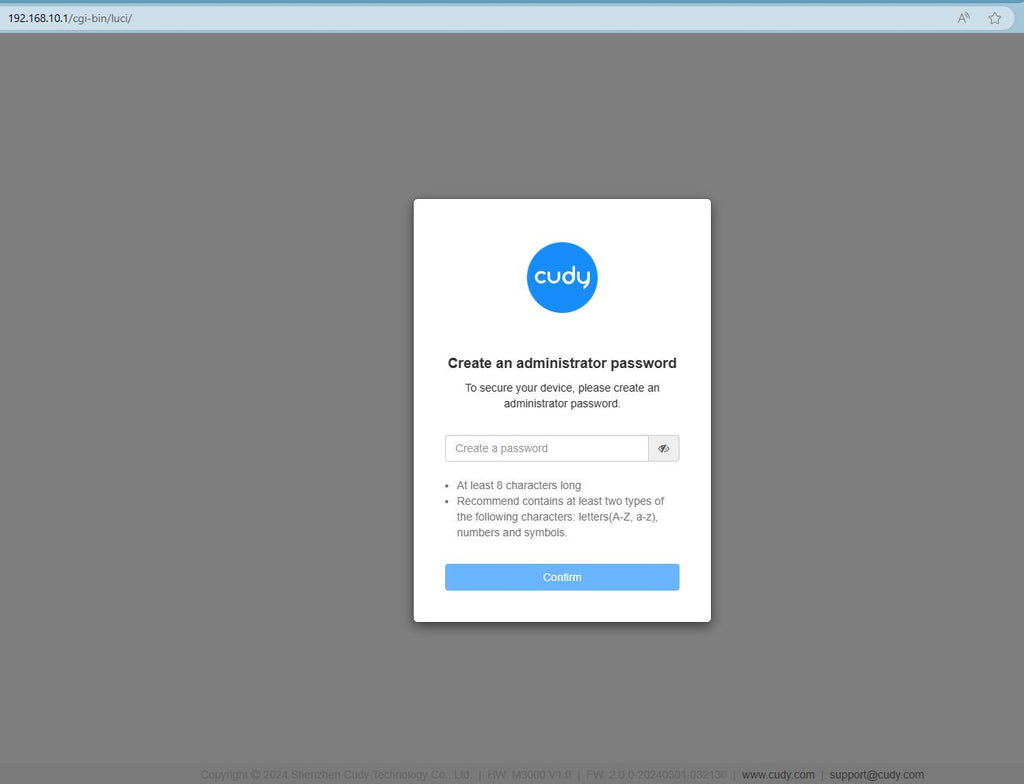
3. solis: Parādīsies zemāk redzamā pieteikšanās lapa. Izvēlieties tīmekļa pārvaldības lapas displeja valodu un pieprasītā parole ir "admin" vai arī ir nepieciešams izveidot vienu paroli.

Rezultātu novēršana:
Ja pieteikšanās lapa netiek parādīta, izmēģiniet tīmekļa vietnē veikt šādus problēmu novēršanas soļus:
Kā rīkoties, ja nevar piekļūt sava Cudy maršrutētāja tīmekļa saskarnei?
314 comments
I want to change my wifi password
Не могу подключить
non riesco ad entrare nel router di CUDY 700
@Dear Dimakatso,
Our technical support has contacted you via email. Please check.
“I can’t access internet with the cuby router”
I can’t access internet with the cuby router