
Izpētītajiem maršrutētājiem ir iebūvēta tīmekļa saskarne, un šai iekšējai tīmekļa lapai nav nepieciešama piekļuve internetam. Lai pieteiktos tīmekļa pārvaldības lapā, varat savienot ierīci ar Cudy maršrutētāju, izmantojot Wi-Fi vai Ethernet.
1. solis: Savienojiet datoru ar Cudy maršrutētāju, izmantojot bezvadu vai vadu.
Ja Bezvadu: noklusējuma Wi-Fi vārds un parole ir uzdrukāti uz jūsu maršrutētāja apakšējās etiķetes.
Ja vadu: Savienojiet datoru ar vienu no LAN porti maršrutētāja aizmugurē, izmantojot Ethernet kabeli.
2. solis: Atveriet tīmekļa pārlūkprogrammu (Google, Firefox, Edge u. c.) un ievadiet http://cudy.net vai http://192.168.10.1 adreses joslā.
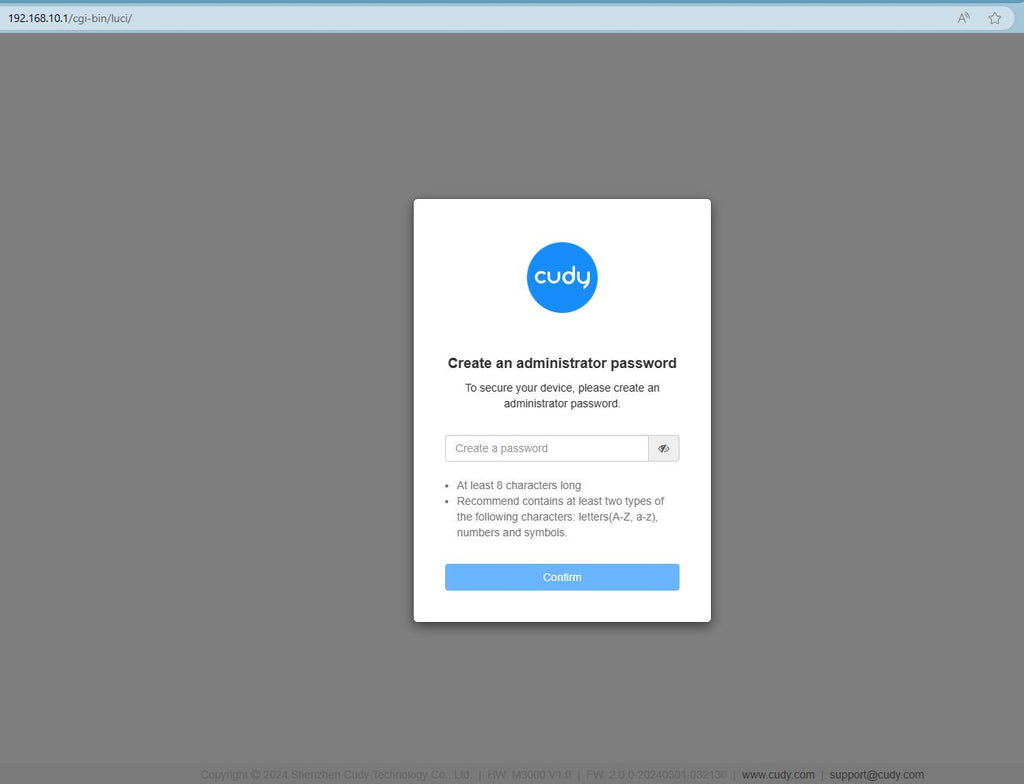
3. solis: Parādīsies zemāk redzamā pieteikšanās lapa. Izvēlieties tīmekļa pārvaldības lapas displeja valodu un pieprasītā parole ir "admin" vai arī ir nepieciešams izveidot vienu paroli.

Rezultātu novēršana:
Ja pieteikšanās lapa netiek parādīta, izmēģiniet tīmekļa vietnē veikt šādus problēmu novēršanas soļus:
Kā rīkoties, ja nevar piekļūt sava Cudy maršrutētāja tīmekļa saskarnei?
310 comments
Im struggling to login
contraseña
Admin password
@Dear Lizzi,
You can do it via the Cudy APP. It is easier to do it. Install Cudy APP on your phone. Connect your phone to the Cudy Wi-Fi. Login to the router via Cudy APP. Then you check amd change the settings of your Cudy router.
“People are connected to my WiFi and I want to change my password”
@Dear Ntsokolo,
The password is the administrator password for login to the web management page of the router. If you forget it, you can try to reset the router to factory default by long pressing the reset button for about 3 seconds. You can release the reset button when the LED flashes. You must create a new password when first login to the web page of the router.
Note: All the configuration will be cleared. You must reconfigure the router after resetting your router.
“I forget my admin password how can I do to get the one cos I tried many way it still doesn’t come”