Hogyan lehet bejelentkezni a Cudy Router webes felületére?

A Cudy routerek beépített webes felülettel rendelkeznek, és ez a belső weboldal nem igényel internet-hozzáférést. Eszközét Wi-Fi-n vagy Etherneten keresztül csatlakoztathatja a Cudy routerhez, hogy bejelentkezzen a webes felügyeleti oldalra.

1. lépés:Csatlakoztassa számítógépét a Cudy routerhez a következőn keresztül:Vezeték nélkülivagyVezetékes.

HaVezeték nélküliAz alapértelmezett Wi-Fi név és jelszó a router alján található címkén található.

HaVezetékes: Csatlakoztassa a számítógépét az egyikhezLAN portoka router hátulján található Ethernet kábellel.

2. lépés: Nyisson meg egy webböngészőt (Google, Firefox, Edge stb.), és írja be a következőt:http://cudy.netvagyhttp://192.168.10.1a címsorban.

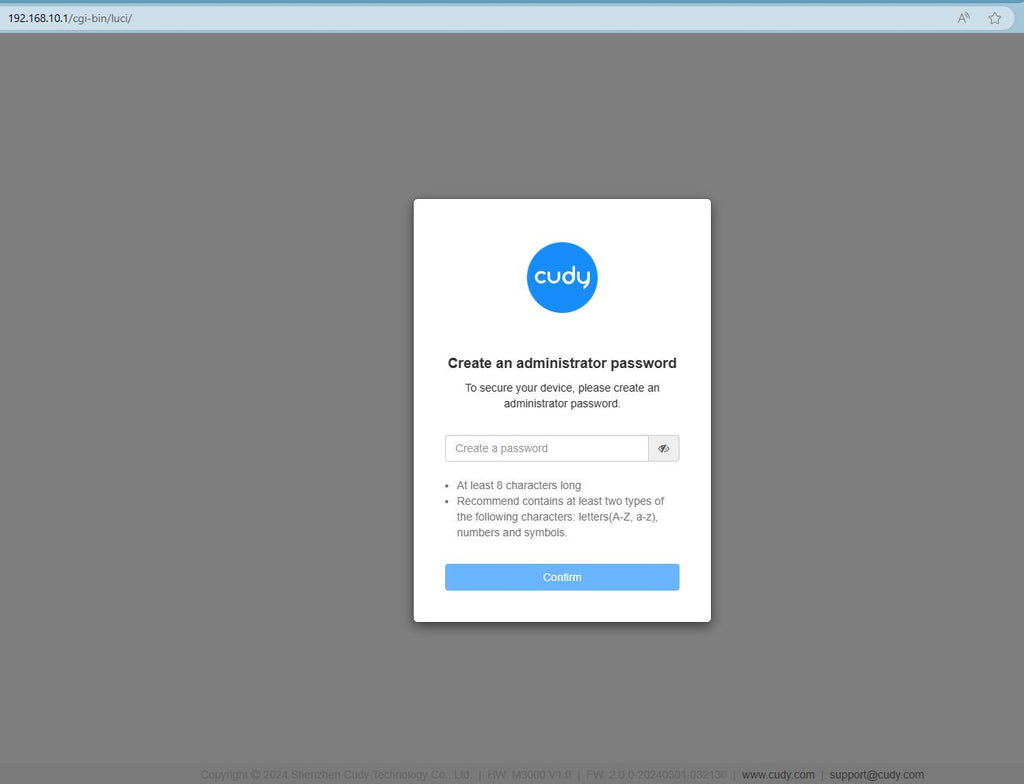
3. lépésMegjelenik az alábbi bejelentkezési oldal. Válassza ki a webes kezelőoldal megjelenítési nyelvét, és a kért jelszó: 'admin„vagy létre kell hoznia egy jelszót.”

Hibaelhárítás:

Ha a bejelentkezési oldal nem jelenik meg, próbálja ki a következő hibaelhárítási lépéseket a weboldalon:

Mit tegyek, ha nem tudom elérni a Cudy routerem webes felületét?

Vissza a blogba

303 hozzászólás

me dice conectado sin internet,gracias

Conchita

@Fredy
Estimado Fredy:
Gracias por contactar con el equipo de soporte de Cudy.
Puedes intentar restablecer el router a la configuración de fábrica manteniendo pulsado el botón de reinicio durante unos 3 segundos. Suéltalo cuando el LED parpadee.
La contraseña predeterminada del panel web volverá a ser “admin”. Si la versión de firmware es 2.×.x, deberás crear una nueva contraseña la primera vez que accedas a la página web del router.

“No me deja entrar, intento poner la contraseña “admin” y me sale contraseña inválido, me podrían ayudar con otra contraseña.”

Support Cudy

No me deja entrar, intento poner la contraseña “admin” y me sale contraseña inválido, me podrían ayudar con otra contraseña.

Fredy

@Chaleen kriel
Dear Chaleen,
Thank you for contacting Cudy support team.
If you forget the password of your router, you can try to reset the router to factory default by long pressing the reset button for about 3 seconds. You can release the reset button when the LED flashes.
You need to create a new password when first login to the web page of the router.

“Cant connect on the cudy app the password admin does not work WR3000 router”

Support Cudy

Margie Muggleston,
Dear Margie,
Thanks for contacting the Cudy support team. I need some information.
You can try to reset the router to factory default by long pressing the reset button for about 3 seconds. You can release the reset button when the LED flashes.
The default password of the WEB panel will recover to default “admin”. If the firmware version is 2.×.x, you need to create a new password when first login to the web page of the router.

“Hi there. I want to log in to Cody, but it won’t accept “admin” as a password. Anything else I can try?”

Support Cudy

Hozzászólás írása