
1. Download the latest firmware from Download Center.
2. Unzip the file you download
3. Power ON Cudy device, wait for LED become solid.
4. Connect to Cudy’s network via WiFi or Ethernet.
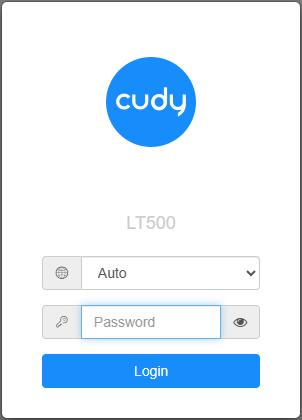
5. Open a web browser and go to http://cudy.net or http://192.168.10.1.
For details, please refer to How to log into the web interface of Cudy Router?
6. Upgrade the firmware.
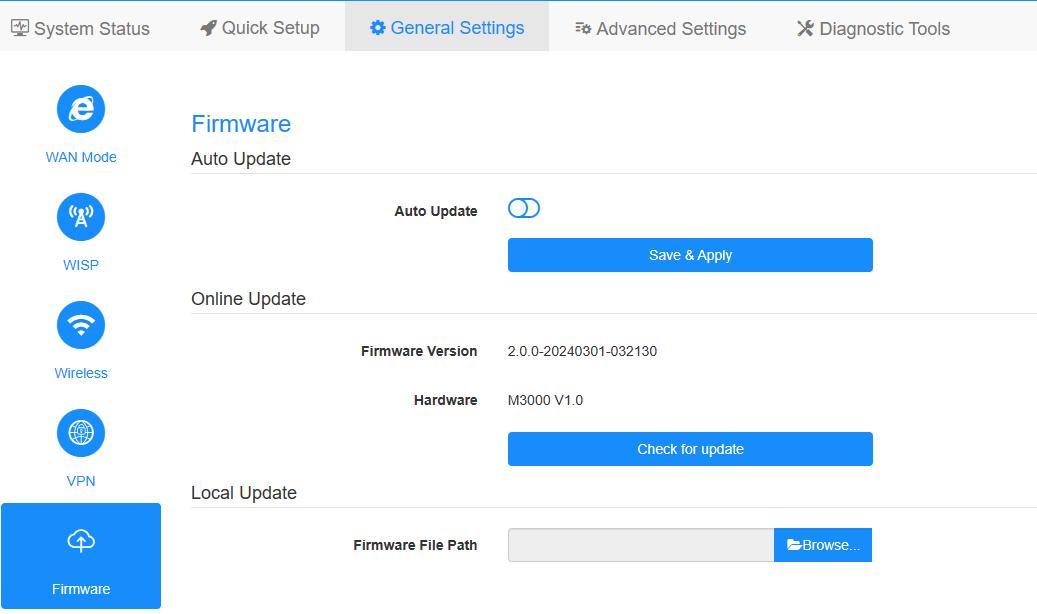
a. Advanced Settings -> Firmware, Choose the firmware you unzipped to upload.
b. General Settings->Firmware page can do online upgrade and Local update.
Note: Only Firmware 2.x.x or above support.
7. Waiting 5 minutes for the router restart.
189 comments
@Уважаемый Владимир!
Вы можете попробовать восстановить роутер, следуя инструкции на сайте, указанном ниже.
https://www.cudy.com/blogs/faq/how-to-recovery-the-cudy-router-from-openwrt-firmware-to-cudy-official-firmware
“Спасибо роутер превратился в кирпич”
Спасибо роутер превратился в кирпич
@Dear Carlos,
I sent it again. Please check.
“Thanks for the answer I haven’t receive the wr6500 v1 firmware can you double check?”
Thanks for the answer I haven’t receive the wr6500 v1 firmware can you double check?
@Dear Carlos,
I suggest you can update the firmware of both routers. We have released new firmware for WR11000. You can update it online. Our technical support has sent you the firmware for WR6500 via email. Please check.
“I have an wr11000 and a wr6500 in mesh mode the Internet is always intermitent video call via teams are always intermitent, but the speed is ok, what could be?”