
Cudy routers have a build-in web interface and this internal web page doesn't require the internet access. You can connect your device to the Cudy Router via Wi-Fi or Ethernet to log into the web management page.
Step 1: Connect your computer to your Cudy Router via Wireless or Wired.
If Wireless: The default Wi-Fi name and password are printed on your router's bottom label.
If Wired: Connect your computer to one of LAN Ports on the back of the router via an Ethernet cable.
Step 2: Open a web browser (Google, Firefox, Edge, etc.) and enter http://cudy.net or http://192.168.10.1 in the address bar.
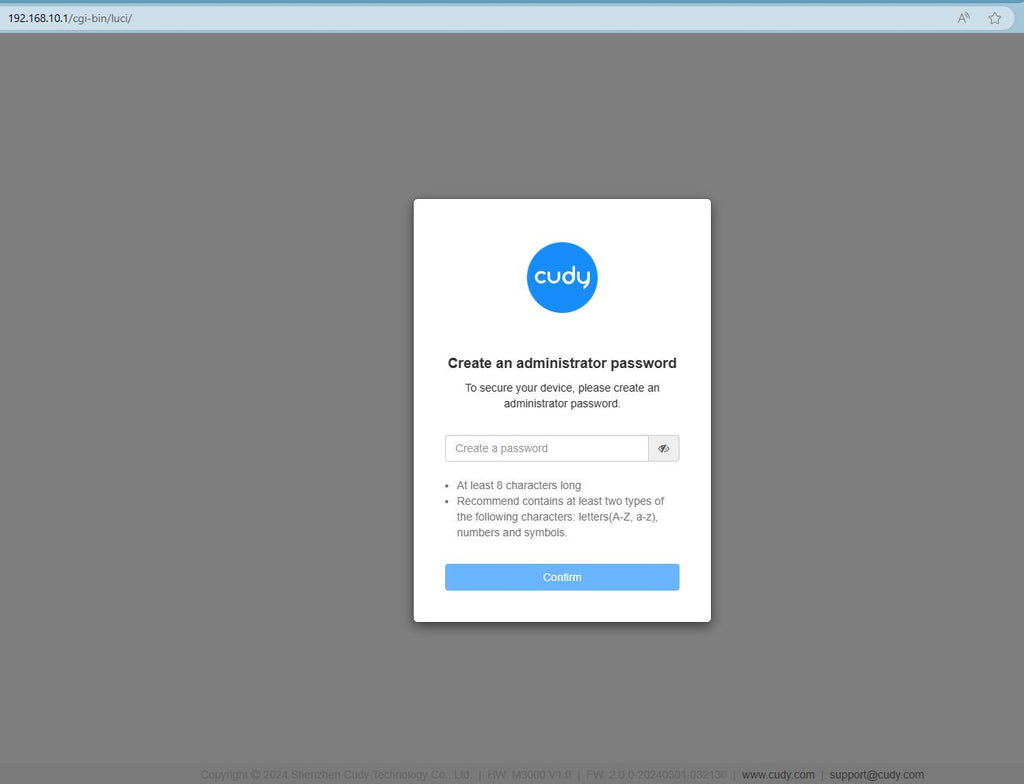
Step 3: The login page below will pop up. Choose the display language of the web management page and the requested password is 'admin' or need to create one password.

Troubleshooting:
If the login page doesn't show up, try the following troubleshooting steps on the website:
What should I do if I can't access the web interface of my Cudy router?
309 comments
contraseña
Admin password
@Dear Lizzi,
You can do it via the Cudy APP. It is easier to do it. Install Cudy APP on your phone. Connect your phone to the Cudy Wi-Fi. Login to the router via Cudy APP. Then you check amd change the settings of your Cudy router.
“People are connected to my WiFi and I want to change my password”
@Dear Ntsokolo,
The password is the administrator password for login to the web management page of the router. If you forget it, you can try to reset the router to factory default by long pressing the reset button for about 3 seconds. You can release the reset button when the LED flashes. You must create a new password when first login to the web page of the router.
Note: All the configuration will be cleared. You must reconfigure the router after resetting your router.
“I forget my admin password how can I do to get the one cos I tried many way it still doesn’t come”
I forget my admin password how can I do to get the one cos I tried many way it still doesn’t come