
This tutorial will show you how to setup a VPN tunnel between your Cudy machine and any other computer. ZeroTier is one of the easiest VPN services to configure and it's completely free for up to 50 devices. The entire process, from start to finish, should only take a few minutes.
1. Create ZeroTier Accounts
2. Create a Network
- After you've logged in to ZeroTier, navigate to the Networks tab
- Click Create New Network and your Network ID will be visible in the interface

3. Choose Public or Private Access
There are two ways to manage access: Public or Private
Public Network: Anyone with the Network ID can connect. This is the easiest option but is slightly less secure.
- Click on the Network in the ZeroTier interface
- Under Access Control, select the Public Network option:

Private Network: All machines must be approved through the ZeroTier interface before they can connect. This is the default option and is more secure.
- When machines join the Network (see Step 4), they will need to be approved under the Members section. Just check the box under the Auth? column to approve each machine:
4. Setup Cudy Router
- A. Open a web browser and Login to http://cudy.net/ or http://192.168.10.1/
- B. Go to General Settings -> VPN to set Zerotier, choose Zerotier master and input the Zerotier Network ID. Then click Save and Apply.

- C. If you configure your network as Private network,need to check the box under the Auth? column to approve Cudy Router again.
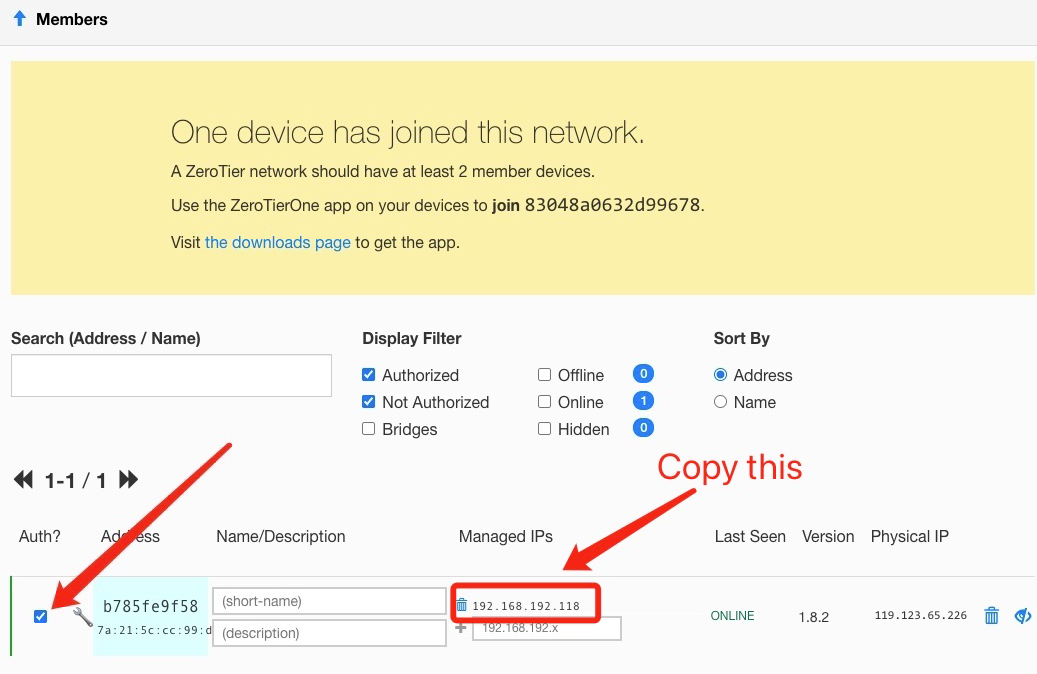
- D. Add Routes for Cudy router.

5. Install ZeroTier App
Download and install the ZeroTier App on all machines you would like to connect.
6. Join machines to network
When the ZeroTier app is running, click Join Network
Enter the Network ID from Step 2 and click Join. If you created a Public Network, you should now be connected. If you created a Private Network, you will need to approve each machine in the ZeroTier interface (see Step 2).
7. Verify connectivity
You can check to see if you've successfully connected by clicking Show Network on the ZeroTier app. The Status should show OK and the Connected box should be checked. You can also try pinging a private IP address of another machine to verify the connection.
8. Remote Access
Then you can remote access cudy router use 192.168.10.1 (192.168.192.118) or the subnet 192.168.10.xxx.
118 comments
Hi,
is there some firmware for the LT400 V1.0 EU (Release 8) with ZeroTier available?
Best regards.
@Dear Lelio Sato,
Our technical support has sent you the beta firmware via email. Please check.
“My WR3000 v1 does not show ZeroTier under VPN configurations. Can you provide FW to enable it? 谢谢!”
My WR3000 v1 does not show ZeroTier under VPN configurations. Can you provide FW to enable it? 谢谢!
@Dear Vladi,
Our technical support has contacted you via email. Please check.
“Cody P5 V1.0 can not connect to ZeroTier. Tried to reboot router twice. Router updated to latest firmware (version 2.47). Here is a log from the router:
Fri May 15 14:53:46 2026 daemon.err zerotier.sh818: Command failed: Not found
Fri May 15 14:53:49 2026 daemon.err zerotier.sh818: Command failed: Not found
Fri May 15 14:53:52 2026 daemon.err zerotier.sh818: Command failed: Not found
Fri May 15 14:53:55 2026 daemon.err zerotier.sh818: Command failed: Not found
Fri May 15 14:53:58 2026 daemon.err zerotier.sh818: Command failed: Not found”
Cody P5 V1.0 can not connect to ZeroTier. Tried to reboot router twice. Router updated to latest firmware (version 2.47). Here is a log from the router:
Fri May 15 14:53:46 2026 daemon.err zerotier.sh818: Command failed: Not found
Fri May 15 14:53:49 2026 daemon.err zerotier.sh818: Command failed: Not found
Fri May 15 14:53:52 2026 daemon.err zerotier.sh818: Command failed: Not found
Fri May 15 14:53:55 2026 daemon.err zerotier.sh818: Command failed: Not found
Fri May 15 14:53:58 2026 daemon.err zerotier.sh818: Command failed: Not found
Fri May 15 14:54:01 2026 daemon.err zerotier.sh818: Command failed: Not found
Fri May 15 14:54:04 2026 daemon.err zerotier.sh818: Command failed: Not found
Fri May 15 14:54:07 2026 daemon.err zerotier.sh818: Command failed: Not found
Fri May 15 14:54:10 2026 daemon.err zerotier.sh818: Command failed: Not found
Fri May 15 14:54:13 2026 daemon.err zerotier.sh818: Command failed: Not found
Fri May 15 14:54:16 2026 daemon.err zerotier.sh818: Command failed: Not found
Fri May 15 14:54:19 2026 daemon.err zerotier.sh818: Command failed: Not found
Fri May 15 14:54:22 2026 daemon.err zerotier.sh818: Command failed: Not found
Fri May 15 14:54:25 2026 daemon.err zerotier.sh818: Command failed: Not found
Fri May 15 14:54:28 2026 daemon.err zerotier.sh818: Command failed: Not found
Fri May 15 14:54:31 2026 daemon.err zerotier.sh818: Command failed: Not found
Fri May 15 14:54:34 2026 daemon.err zerotier.sh818: Command failed: Not found
Fri May 15 14:54:37 2026 daemon.err zerotier.sh818: Command failed: Not found
Fri May 15 14:54:40 2026 daemon.err zerotier.sh818: Command failed: Not found
Fri May 15 14:54:43 2026 daemon.err zerotier.sh818: Command failed: Not found
Fri May 15 14:54:46 2026 daemon.err zerotier.sh818: Command failed: Not found
Fri May 15 14:54:49 2026 daemon.err zerotier.sh818: Command failed: Not found
Fri May 15 14:54:52 2026 daemon.err zerotier.sh818: Command failed: Not found
Fri May 15 14:54:55 2026 daemon.err zerotier.sh818: Command failed: Not found
Fri May 15 14:54:58 2026 daemon.err zerotier.sh818: Command failed: Not found
Fri May 15 14:55:01 2026 daemon.err zerotier.sh818: Command failed: Not found
Fri May 15 14:55:04 2026 daemon.err zerotier.sh818: Command failed: Not found
Fri May 15 14:55:07 2026 daemon.err zerotier.sh818: Command failed: Not found
Fri May 15 14:55:10 2026 daemon.err zerotier.sh818: Command failed: Not found
Fri May 15 14:55:13 2026 daemon.err zerotier.sh818: Command failed: Not found
Fri May 15 14:55:16 2026 daemon.err zerotier.sh818: Command failed: Not found
Fri May 15 14:55:19 2026 daemon.err zerotier.sh818: Command failed: Not found
Fri May 15 14:55:22 2026 daemon.err zerotier.sh818: Command failed: Not found
Fri May 15 14:55:25 2026 daemon.err zerotier.sh818: Command failed: Not found
Fri May 15 14:55:28 2026 daemon.err zerotier.sh818: Command failed: Not found
Fri May 15 14:55:31 2026 daemon.err zerotier.sh818: Command failed: Not found
Fri May 15 14:55:34 2026 daemon.err zerotier.sh818: Command failed: Not found
Fri May 15 14:55:37 2026 daemon.err zerotier.sh818: Command failed: Not found
Fri May 15 14:55:40 2026 daemon.err zerotier.sh818: Command failed: Not found
Fri May 15 14:55:43 2026 daemon.err zerotier.sh818: Command failed: Not found
Fri May 15 14:55:47 2026 daemon.err zerotier.sh818: Command failed: Not found
Fri May 15 14:55:50 2026 daemon.err zerotier.sh818: Command failed: Not found
Fri May 15 14:55:53 2026 daemon.err zerotier.sh818: Command failed: Not found
Fri May 15 14:55:56 2026 daemon.err zerotier.sh818: Command failed: Not found
Fri May 15 14:55:59 2026 daemon.err zerotier.sh818: Command failed: Not found
Fri May 15 14:56:02 2026 daemon.err zerotier.sh818: Command failed: Not found
Fri May 15 14:56:05 2026 daemon.err zerotier.sh818: Command failed: Not found
Fri May 15 14:56:08 2026 daemon.err zerotier.sh818: Command failed: Not found
Fri May 15 14:56:11 2026 daemon.err zerotier.sh818: Command failed: Not found
Fri May 15 14:56:14 2026 daemon.err zerotier.sh818: Command failed: Not found
Fri May 15 14:56:17 2026 daemon.err zerotier.sh818: Command failed: Not found
Fri May 15 14:56:20 2026 daemon.err zerotier.sh818: Command failed: Not found
Fri May 15 14:56:23 2026 daemon.err zerotier.sh818: Command failed: Not found
Fri May 15 14:56:26 2026 daemon.err zerotier.sh818: Command failed: Not found
Fri May 15 14:56:29 2026 daemon.err zerotier.sh818: Command failed: Not found
Fri May 15 14:56:32 2026 daemon.err zerotier.sh818: Command failed: Not found
Fri May 15 14:56:35 2026 daemon.err zerotier.sh818: Command failed: Not found
Fri May 15 14:56:38 2026 daemon.err zerotier.sh818: Command failed: Not found
Fri May 15 14:56:41 2026 daemon.err zerotier.sh818: Command failed: Not found
Fri May 15 14:56:44 2026 daemon.err zerotier.sh818: Command failed: Not found
Fri May 15 14:56:47 2026 daemon.err zerotier.sh818: Command failed: Not found
Fri May 15 14:56:50 2026 daemon.err zerotier.sh818: Command failed: Not found
Fri May 15 14:56:53 2026 daemon.err zerotier.sh818: Command failed: Not found
Fri May 15 14:56:56 2026 daemon.err zerotier.sh818: Command failed: Not found
Fri May 15 14:56:59 2026 daemon.err zerotier.sh818: Command failed: Not found
Fri May 15 14:57:02 2026 daemon.err zerotier.sh818: Command failed: Not found
Fri May 15 14:57:05 2026 daemon.err zerotier.sh818: Command failed: Not found
Fri May 15 14:57:08 2026 daemon.err zerotier.sh818: Command failed: Not found
Fri May 15 14:57:11 2026 daemon.err zerotier.sh818: Command failed: Not found
Fri May 15 14:57:14 2026 daemon.err zerotier.sh818: Command failed: Not found
Fri May 15 14:57:17 2026 daemon.err zerotier.sh818: Command failed: Not found
Fri May 15 14:57:20 2026 daemon.err zerotier.sh818: Command failed: Not found
Fri May 15 14:57:23 2026 daemon.err zerotier.sh818: Command failed: Not found
Fri May 15 14:57:26 2026 daemon.err zerotier.sh818: Command failed: Not found
Fri May 15 14:57:29 2026 daemon.err zerotier.sh818: Command failed: Not found
Fri May 15 14:57:32 2026 daemon.err zerotier.sh818: Command failed: Not found
Fri May 15 14:57:35 2026 daemon.err zerotier.sh818: Command failed: Not found
Fri May 15 14:57:38 2026 daemon.err zerotier.sh818: Command failed: Not found
Fri May 15 14:57:41 2026 daemon.err zerotier.sh818: Command failed: Not found
Fri May 15 14:57:44 2026 daemon.err zerotier.sh818: Command failed: Not found
Fri May 15 14:57:47 2026 daemon.err zerotier.sh818: Command failed: Not found
Fri May 15 14:57:50 2026 daemon.err zerotier.sh818: Command failed: Not found
Fri May 15 14:57:53 2026 daemon.err zerotier.sh818: Command failed: Not found
Fri May 15 14:57:56 2026 daemon.err zerotier.sh818: Command failed: Not found
Fri May 15 14:57:59 2026 daemon.err zerotier.sh818: Command failed: Not found
Fri May 15 14:58:02 2026 daemon.err zerotier.sh818: Command failed: Not found
Fri May 15 14:58:05 2026 daemon.err zerotier.sh818: Command failed: Not found
Fri May 15 14:58:08 2026 daemon.err zerotier.sh818: Command failed: Not found
Fri May 15 14:58:11 2026 daemon.err zerotier.sh818: Command failed: Not found
Fri May 15 14:58:14 2026 daemon.err zerotier.sh818: Command failed: Not found
Fri May 15 14:58:17 2026 daemon.err zerotier.sh818: Command failed: Not found
Fri May 15 14:58:20 2026 daemon.err zerotier.sh818: Command failed: Not found
Fri May 15 14:58:23 2026 daemon.err zerotier.sh818: Command failed: Not found