
Cudy routers have a build-in web interface and this internal web page doesn't require the internet access. You can connect your device to the Cudy Router via Wi-Fi or Ethernet to log into the web management page.
Step 1: Connect your computer to your Cudy Router via Wireless or Wired.
If Wireless: The default Wi-Fi name and password are printed on your router's bottom label.
If Wired: Connect your computer to one of LAN Ports on the back of the router via an Ethernet cable.
Step 2: Open a web browser (Google, Firefox, Edge, etc.) and enter http://cudy.net or http://192.168.10.1 in the address bar.
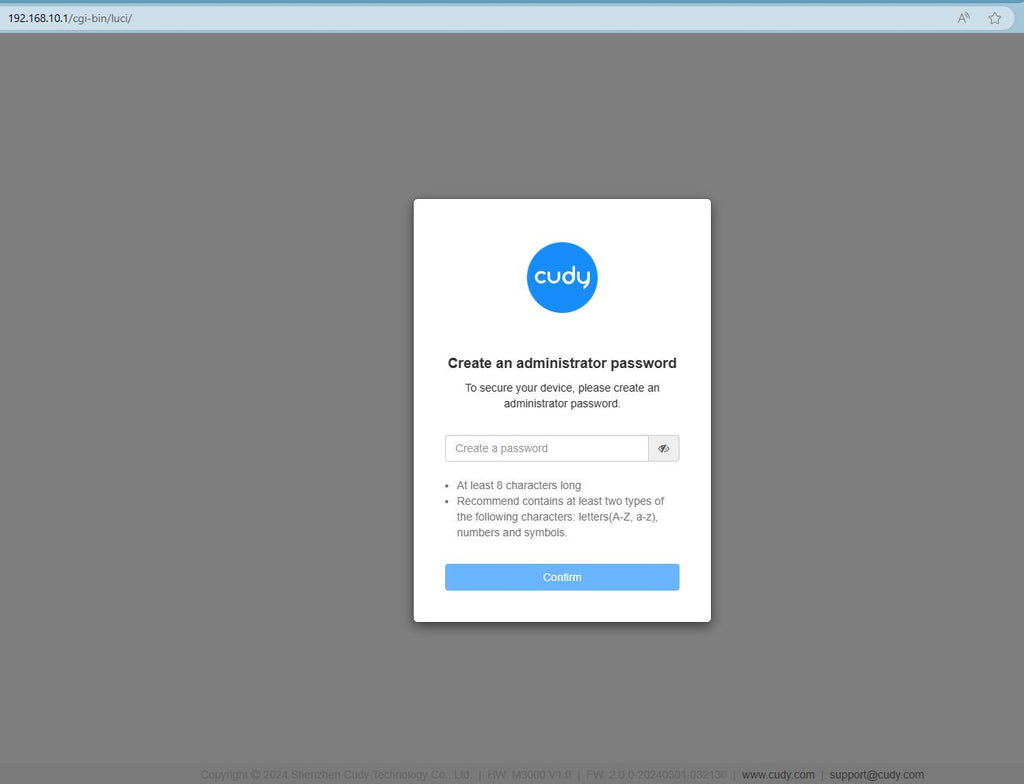
Step 3: The login page below will pop up. Choose the display language of the web management page and the requested password is 'admin' or need to create one password.

Troubleshooting:
If the login page doesn't show up, try the following troubleshooting steps on the website:
What should I do if I can't access the web interface of my Cudy router?
288 comments
@Dear Evonia,
Please login to the Cudy router via Cudy APP. It will be very easy to do this via Cudy APP.
“I want to change my wifi password or block people”
I want to check who are connecting with our wifi
I want to change my wifi password or block people
@Dear Nobody,
The admin password should be between 8 and 64 characters long.
“Hi. What is the maximum length of the admin password?
-Nobody”
Hi. What is the maximum length of the admin password?
-Nobody