
Cudy routers have a build-in web interface and this internal web page doesn't require the internet access. You can connect your device to the Cudy Router via Wi-Fi or Ethernet to log into the web management page.
Step 1: Connect your computer to your Cudy Router via Wireless or Wired.
If Wireless: The default Wi-Fi name and password are printed on your router's bottom label.
If Wired: Connect your computer to one of LAN Ports on the back of the router via an Ethernet cable.
Step 2: Open a web browser (Google, Firefox, Edge, etc.) and enter http://cudy.net or http://192.168.10.1 in the address bar.
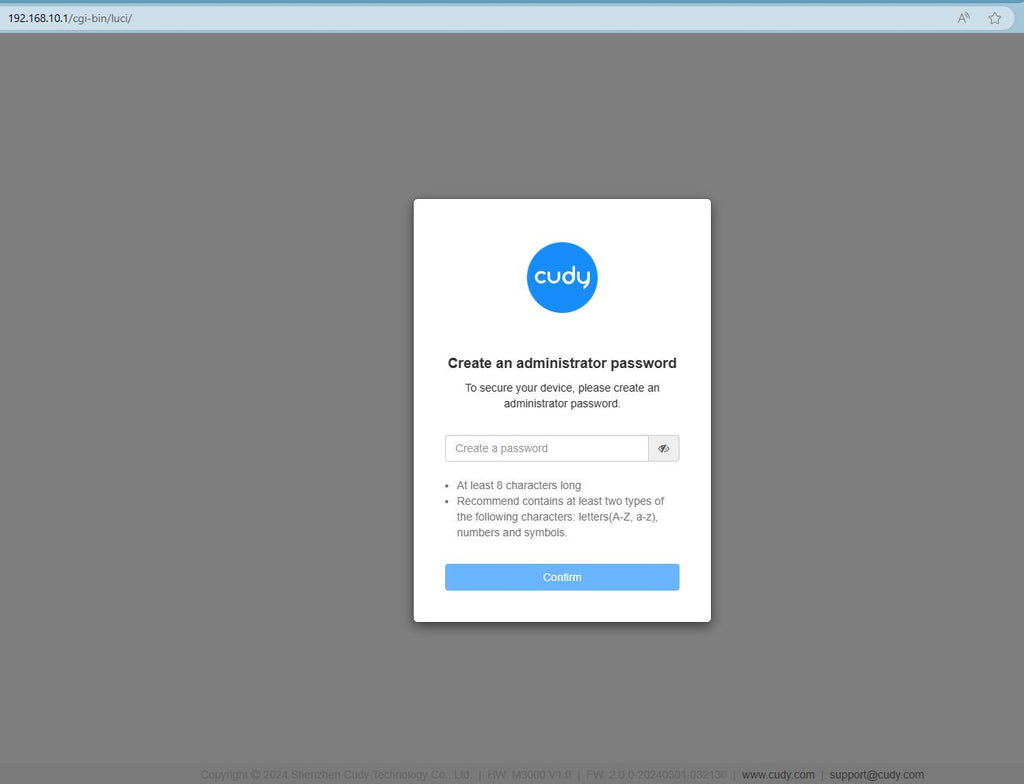
Step 3: The login page below will pop up. Choose the display language of the web management page and the requested password is 'admin' or need to create one password.

Troubleshooting:
If the login page doesn't show up, try the following troubleshooting steps on the website:
What should I do if I can't access the web interface of my Cudy router?
315 comments
اريد فقط ادخل على النتصفح لكي اغير كلمة السر
عزيزي علي الحسن، أحتاج إلى بعض المعلومات الإضافية لحل هذه المشكلة.
١. ما هو طراز منتج Cudy الخاص بك؟ يمكنك التحقق من الطراز على الملصق الموجود أسفل الجهاز.
٢. إذا كان جهاز توجيه (راوتر)، فكيف تقوم بتوصيله بالجهاز السابق (مثل المودم أو ONT)؟ عبر منفذ WAN أم LAN؟ إذا كان عبر منفذ LAN، فيُرجى التغيير إلى منفذ WAN والمحاولة مرة أخرى.
انا لا استطيع الدخول الى الوافاي
انا لا استطيع الدخول الى الوافاي
@Dear Brandon Bryant,
Generally, you can go to “General Settings” —“Wireless” page. Click “Advanced” to set it. But if you set the Range Extender, WISP or Client mode. The channal option will be hidden.
“I can’t figure out how to change the channel that my network is broadcasted on”
I can’t figure out how to change the channel that my network is broadcasted on