Wie melde ich mich an der Weboberfläche des Cudy Routers an?

Cudy-Router verfügen über eine integrierte Weboberfläche, die keinen Internetzugang benötigt. Sie können Ihr Gerät per WLAN oder Ethernet mit dem Cudy-Router verbinden, um sich in die Web-Verwaltungsoberfläche einzuloggen.

Schritt 1:Verbinden Sie Ihren Computer mit Ihrem Cuddy-Router überDrahtlosoderVerdrahtetDie

WennDrahtlosDer Standard-WLAN-Name und das Standardpasswort sind auf dem Etikett an der Unterseite Ihres Routers aufgedruckt.

WennVerdrahtetVerbinden Sie Ihren Computer mit einem der folgenden Geräte:LAN-Anschlüsseauf der Rückseite des Routers über ein Ethernet-Kabel.

Schritt 2Öffnen Sie einen Webbrowser (Google, Firefox, Edge usw.) und geben Sie Folgendes ein:http://cudy.netoderhttp://192.168.10.1in der Adressleiste.

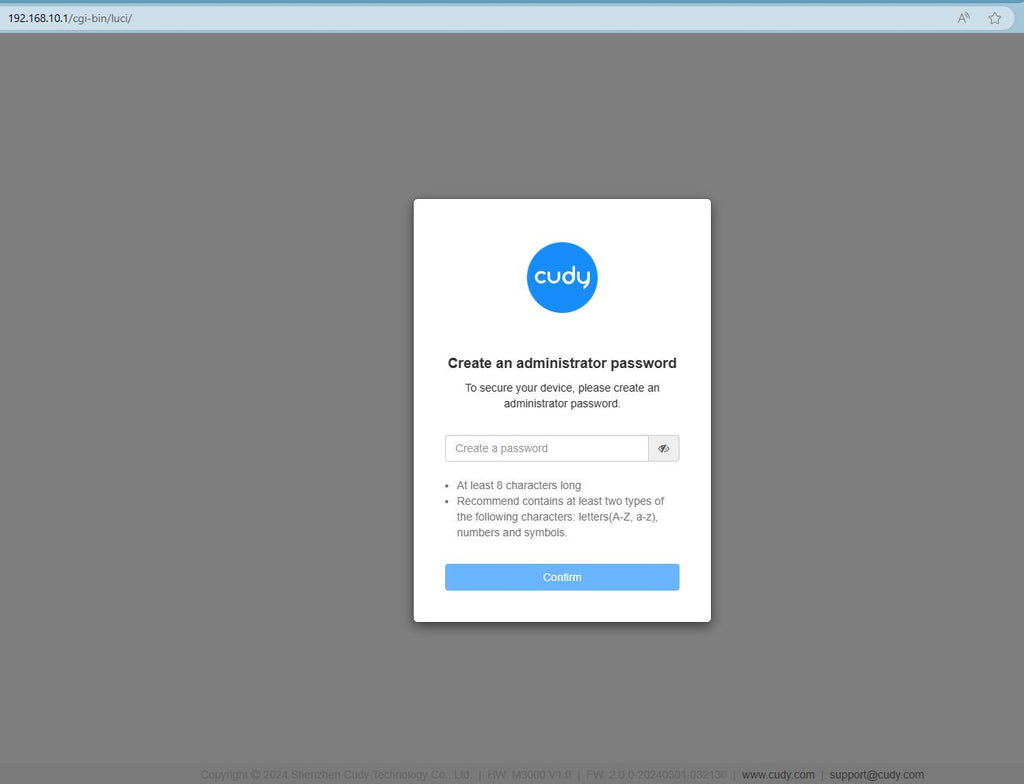
Schritt 3Die unten stehende Anmeldeseite wird angezeigt. Wählen Sie die Anzeigesprache der Webverwaltungsseite. Das angeforderte Passwort lautet:Administratoroder Sie müssen ein Passwort erstellen.

Fehlerbehebung:

Falls die Anmeldeseite nicht angezeigt wird, versuchen Sie die folgenden Schritte zur Fehlerbehebung auf der Website:

Was soll ich tun, wenn ich nicht auf die Weboberfläche meines Cudy-Routers zugreifen kann?

Zurück zum Blog

254 Kommentare

@Marlon,
Dear Customer,
Thank you for contacting Cudy support team.
Please check if you connect the WAN port of the Cudy router to the LAN port of TP-LINK? If not, please change to WAN port of the Cudy router.

“I have a Cudy wireless router however I cannot signin to the Cudy page to setup the network. I have a eero router connected to an 8 port tp link and one port from the tplink connected to the Cudy Router. I cannot sign into the Cudy nextwork page when I specify the correct Ip address. Thank you”

Support Cudy

I have a Cudy wireless router however I cannot signin to the Cudy page to setup the network. I have a eero router connected to an 8 port tp link and one port from the tplink connected to the Cudy Router. I cannot sign into the Cudy nextwork page when I specify the correct Ip address. Thank you

Marlon McCaulay

@George
Dear George,
Thank you for contacting Cudy support team.
Our technical support has contacted you via email. Please check.

“After upgrading to latest firmware my WR1200 v.2 I can use the webui only from wifi network the password doesnt work anymore from the wan.Can you help me ?”

Support Cudy

After upgrading to latest firmware my WR1200 v.2 I can use the webui only from wifi network the password doesnt work anymore from the wan.Can you help me ?

George

@David
Dear customer,
Thank you for contacting Cudy support team. I need some more information to fix this issue.
1. What is the model of your router? You can check the model on the label at the bottom of the router.
2. What are the passwords for? WiFi password? Administrator password? or other?
Did you try to reset the router to factory default by long pressing the reset button for about 3 seconds? You can release the reset button when the LED flashes. The default password of the WEB panel will recover to default “admin”. If the firmware version is 2.×.x, you need to create a new password when first login to the web page of the router. The WiFi password will recover to factory default which is printed on the label.

“I’m failing to reset my passwords may u please help me with this”

Support Cudy

Hinterlasse einen Kommentar